To connect OPNsense to a VPSnet private network over WireGuard, add the site in the VPSnet control panel and download its .conf file, then on OPNsense create a WireGuard instance with the private key from that file, add the VPN as a peer, switch WireGuard on and allow the servers in the firewall. OPNsense adds the routes itself. Shown on OPNsense 26.7, where WireGuard is built in.
Before you start
- In the VPSnet control panel open your VPN, choose Connect a site (router), pick OPNsense, keep WireGuard under Connect over and click Next. Enter the site’s networks and choose the servers it may reach.
- Download the .conf file right away: it holds the router’s private key and is shown once.
- Keep the panel’s values for the router open: the VPN address and port, the VPN public key, the tunnel address, the addresses to send into the tunnel (AllowedIPs) and the keepalive.
The pictures show example values from documentation ranges. Enter the values from your own router recipe.
1. Create the instance
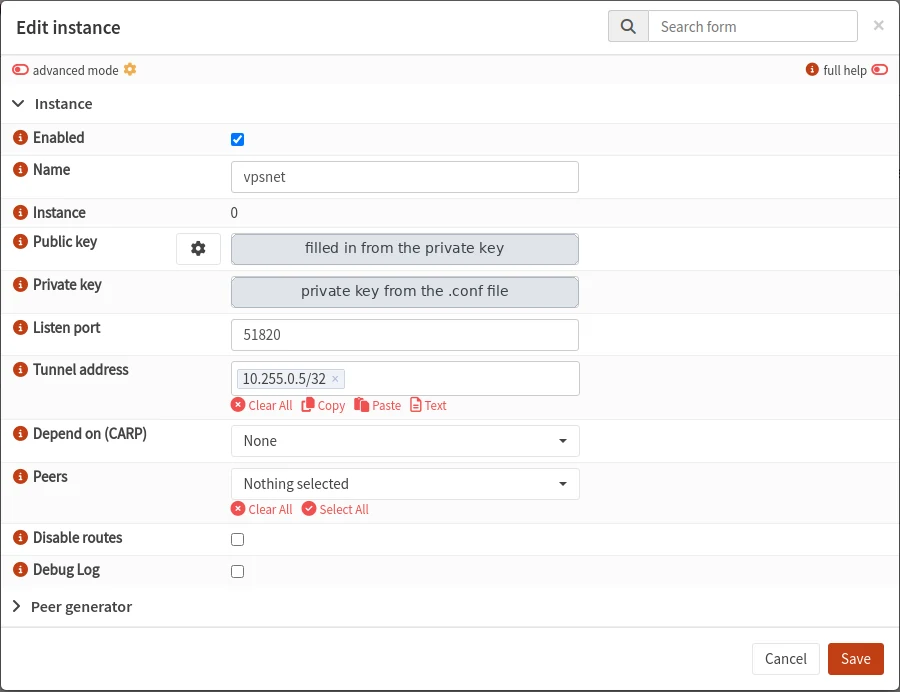
VPN > WireGuard > Instances > +
Paste the private key from the .conf file; the public key fills in by itself. Enter the listen port only if the panel shows one. Save.
| Field | Value |
|---|---|
| Name | vpsnet |
| Private key | the private key from the .conf file |
| Listen port | the port from the panel, if one is shown |
| Tunnel address | the tunnel address from the panel (/32) |
2. Add the VPN as a peer
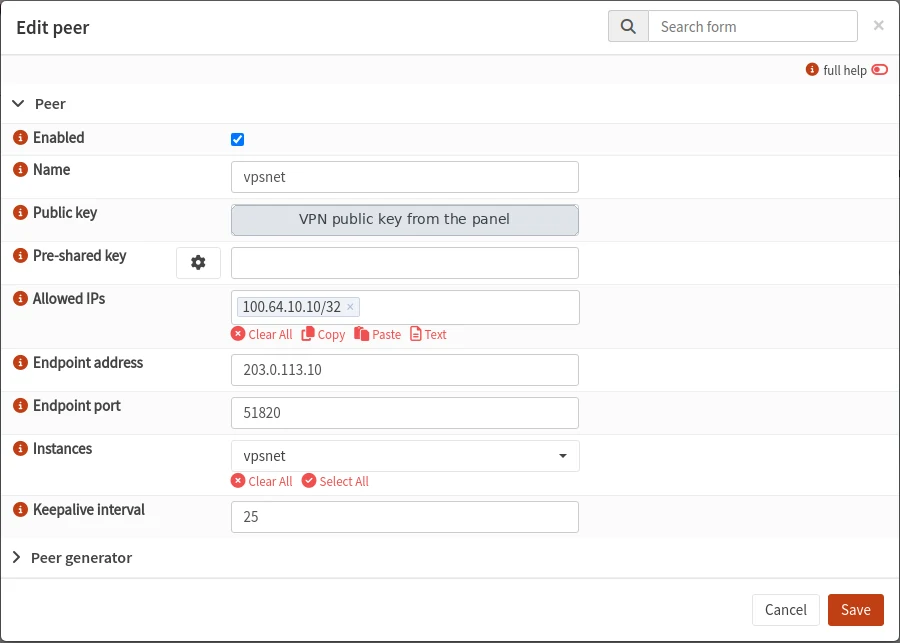
VPN > WireGuard > Peers > +
Enter every AllowedIPs address from the panel. Under Instances choose the instance from step 1. Save.
| Field | Value |
|---|---|
| Name | vpsnet |
| Public key | the VPN public key from the panel |
| Allowed IPs | the AllowedIPs addresses from the panel |
| Endpoint address | the VPN address from the panel |
| Endpoint port | the VPN port from the panel |
| Instances | the instance from step 1 |
| Keepalive interval | the keepalive from the panel (25) |
3. Switch WireGuard on
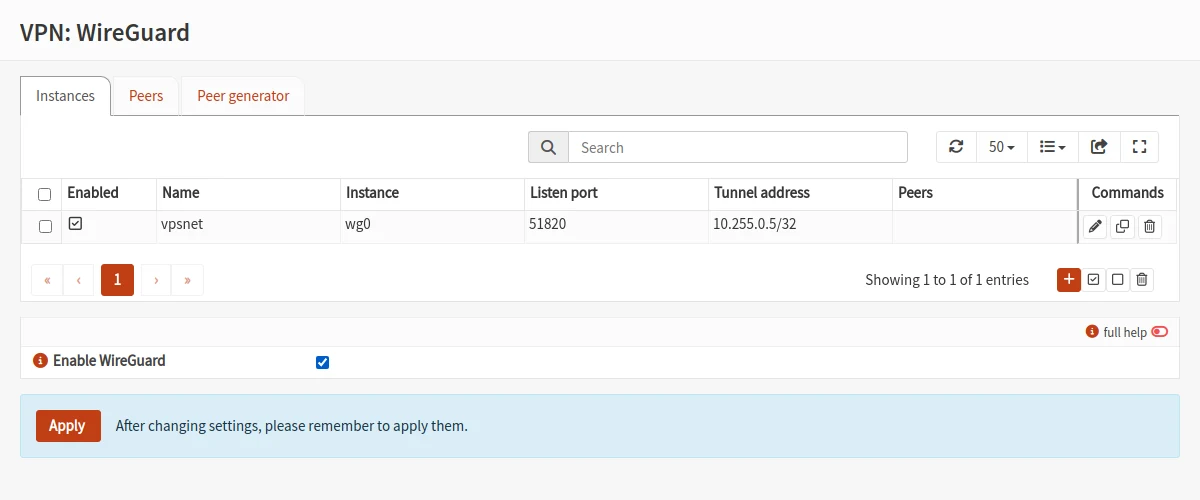
VPN > WireGuard > Instances
Tick Enable WireGuard and click Apply. OPNsense adds the routes to the AllowedIPs addresses itself (leave Disable routes unticked), so no gateway or static route is needed.
| Field | Value |
|---|---|
| Enable WireGuard | On |
4. Allow traffic from the servers
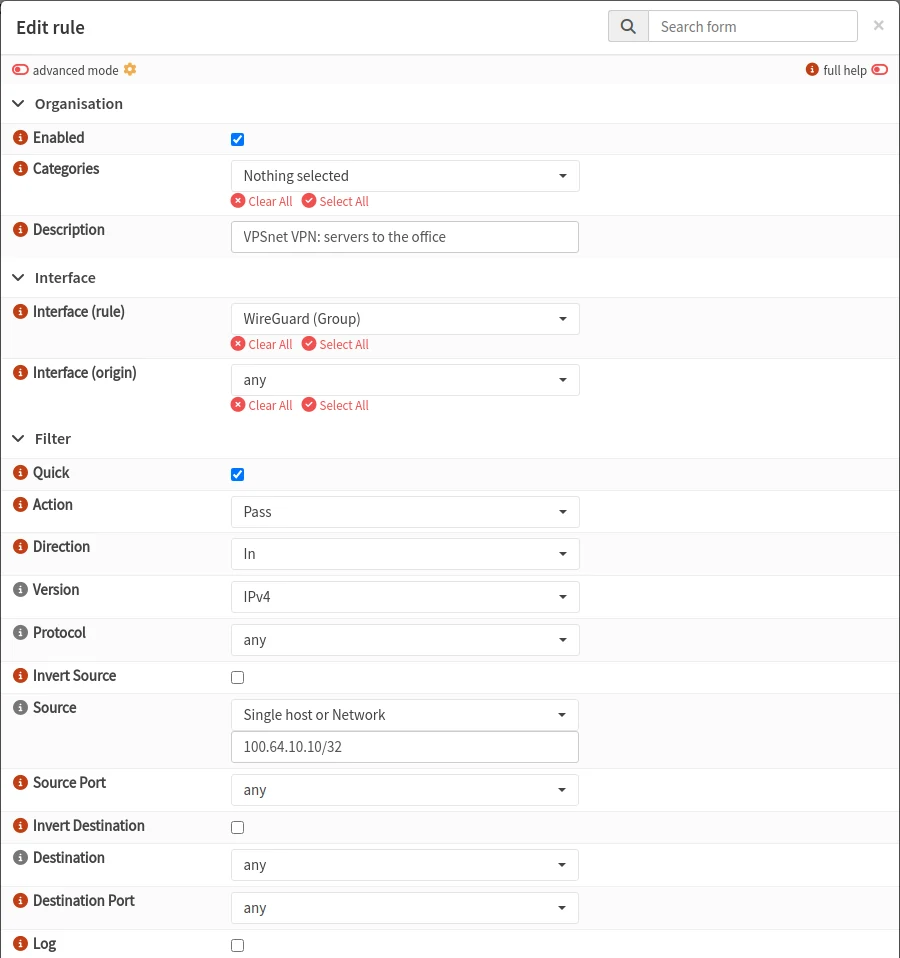
Firewall > Rules > +
Add a rule on WireGuard (Group) so that the VPSnet servers can reach the office. Save and apply. Do not turn on NAT for this tunnel: the servers see the office computers’ own addresses.
| Field | Value |
|---|---|
| Interface (rule) | WireGuard (Group) |
| Action | Pass |
| Direction | In |
| Version | IPv4 |
| Source | the server addresses (AllowedIPs) |
| Destination | any |
5. Check the connection
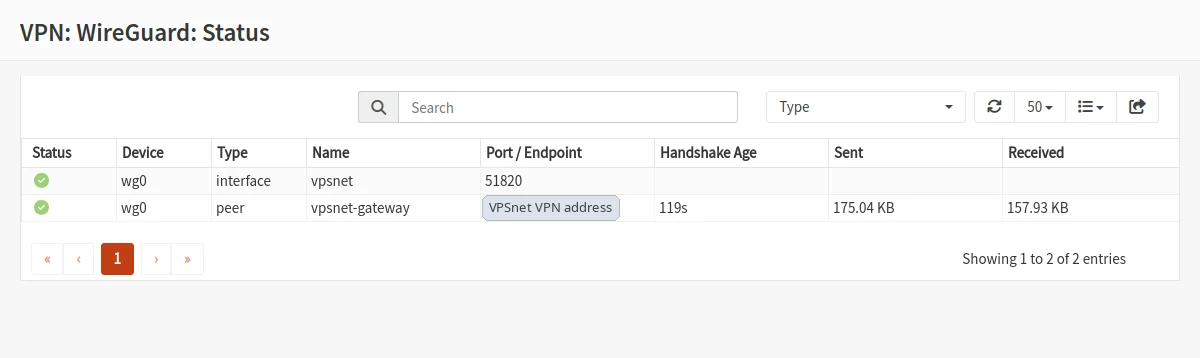
VPN > WireGuard > Status
The peer shows a recent handshake and the Sent and Received counters grow. Then ping a VPSnet server’s private address from an office computer.
| Field | Value |
|---|---|
| Handshake Age | under 3 minutes |
Check and troubleshoot
- In the panel, open the site and click Test tunnel: it checks that the router answers, the keys match and traffic passes.
- No handshake: check the endpoint address and port, the VPN public key, and that the private key came from the .conf file.
- Handshake but no ping: check Allowed IPs, the Pass rule on WireGuard (Group) and that Disable routes is off on the instance.
FAQ
Where do I get the private key?
Only in the .conf file the panel gives you for the site. It is shown once.
My router is behind NAT. Does it still work?
Yes. The router opens the connection and the keepalive keeps it open.
Can several sites reach each other?
Yes, when “Sites can reach each other” is on for the VPN. The other sites’ networks are then added to AllowedIPs.
Do I need NAT for the tunnel?
No. The VPSnet servers see the office computers’ own addresses.