
How to install WordPress on VPSnet
Launch managed WordPress on your VPS with HTTPS and one-time admin secrets in the Applications panel.
Prerequisites
Only what you need before the install steps below — nothing repeated from the guide.
A VPSnet account. Installs, one-time secrets, Open URL, logs, and uninstall live in the Applications panel.
A VPS or Cloud VPS that meets WordPress minimum and recommended resources on the product page.
SSH is optional. Install from the Applications panel — no SSH required.
Have a password manager ready. The WordPress admin password is shown once and never emailed.
Install WordPress from the panel
Follow the Applications panel path end to end. Each step covers one action only.
Order a server that fits WordPress
Check the WordPress product page for minimum and recommended vCPU, RAM, and disk. Order Cloud VPS or VPS, or reuse a server with free capacity. Install at order time or later from Applications.
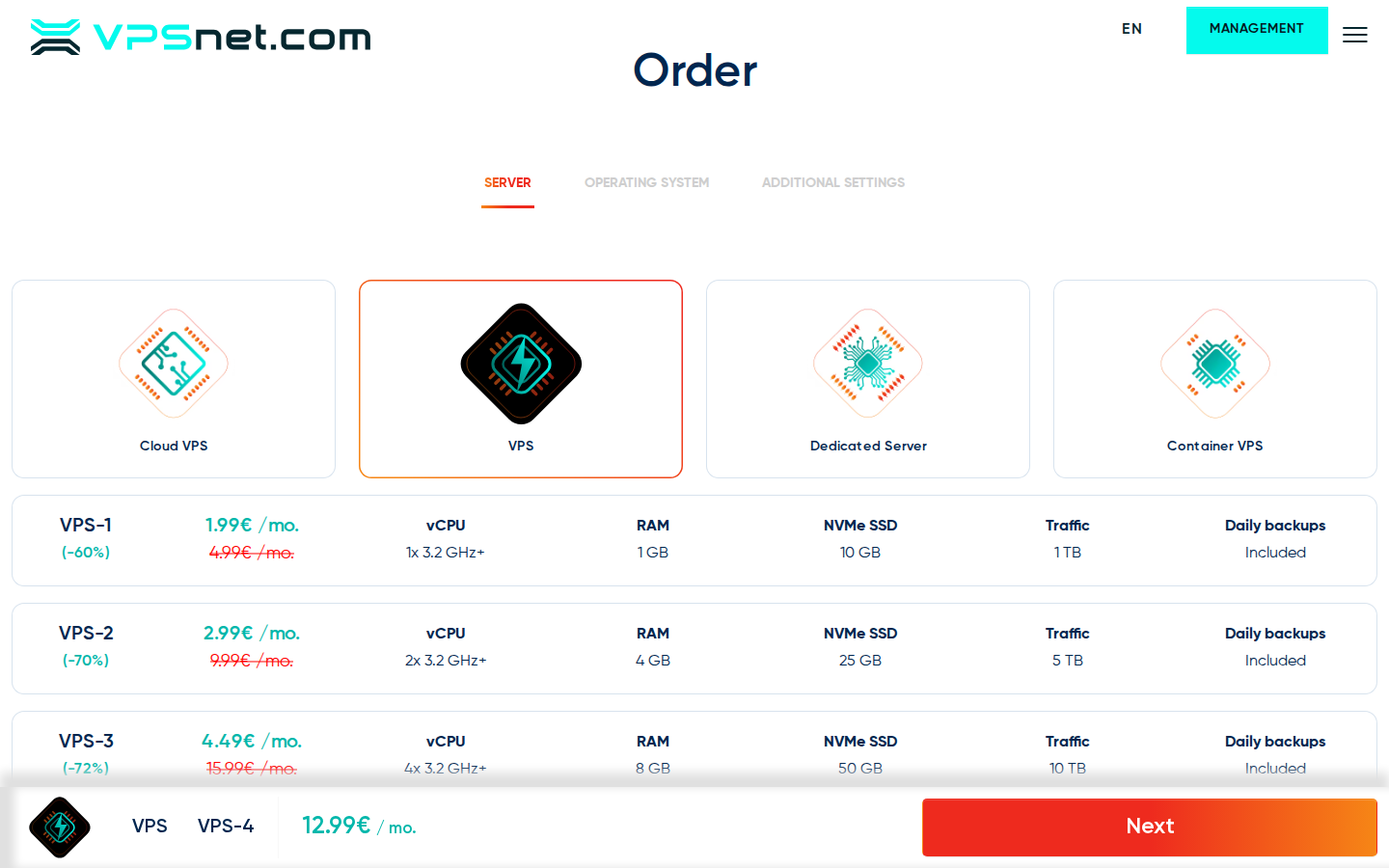
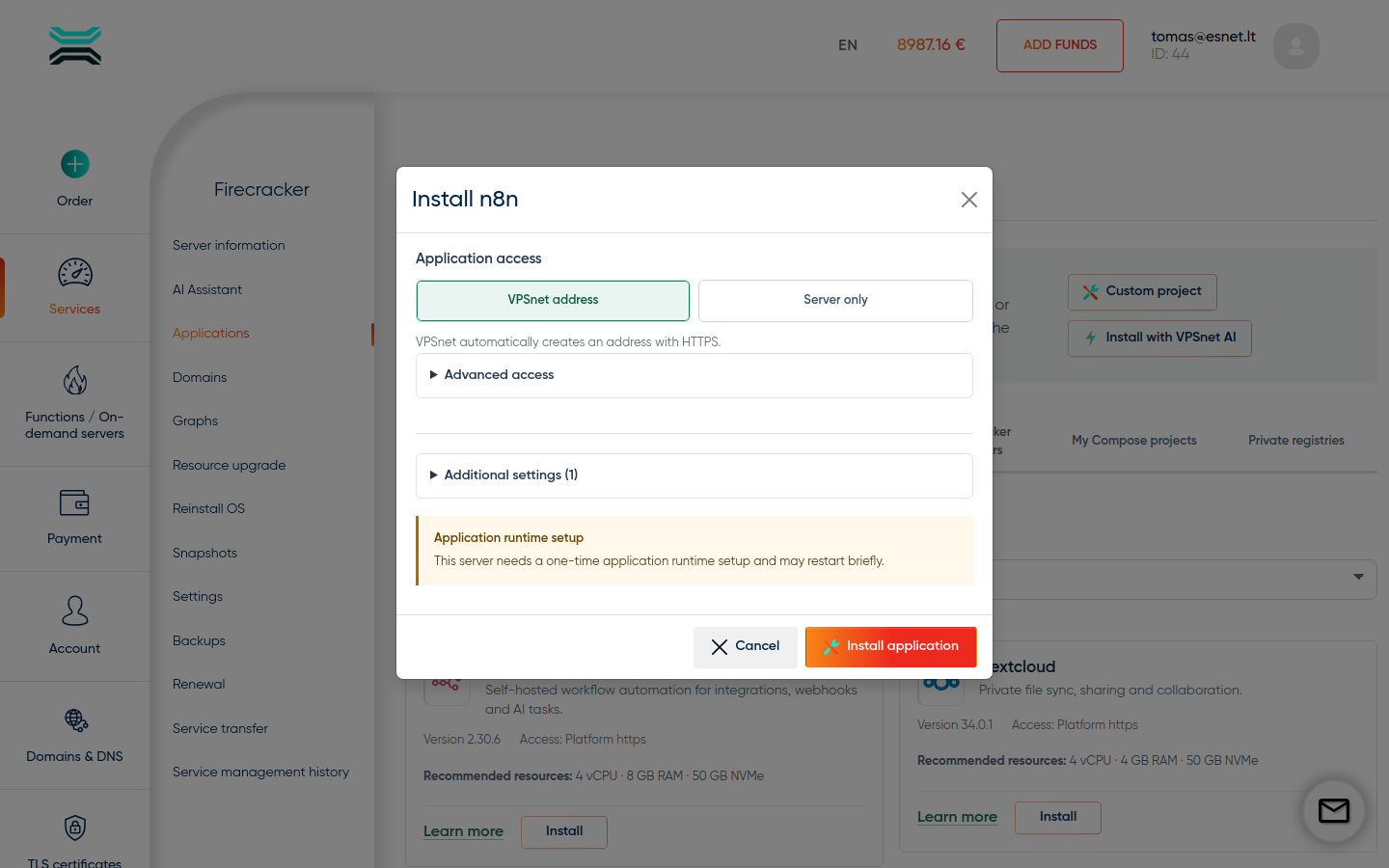
Install WordPress from Applications
Service → Applications → WordPress → Install. Choose VPSnet HTTPS unless you need another access mode. Expand Additional settings for the site title and Optional packs. If a customer-editable password field is offered, enter your own strong value or leave it empty for VPSnet to generate a random one.
Optional plugin packs are pinned versions
When Additional settings shows Optional packs, each checkbox is a pinned plugin — Contact Form 7 6.0.2, Rank Math 1.0.242, or WooCommerce 9.6.2. All default off. This is not the open WordPress marketplace; Plugins → Add New stays blocked.
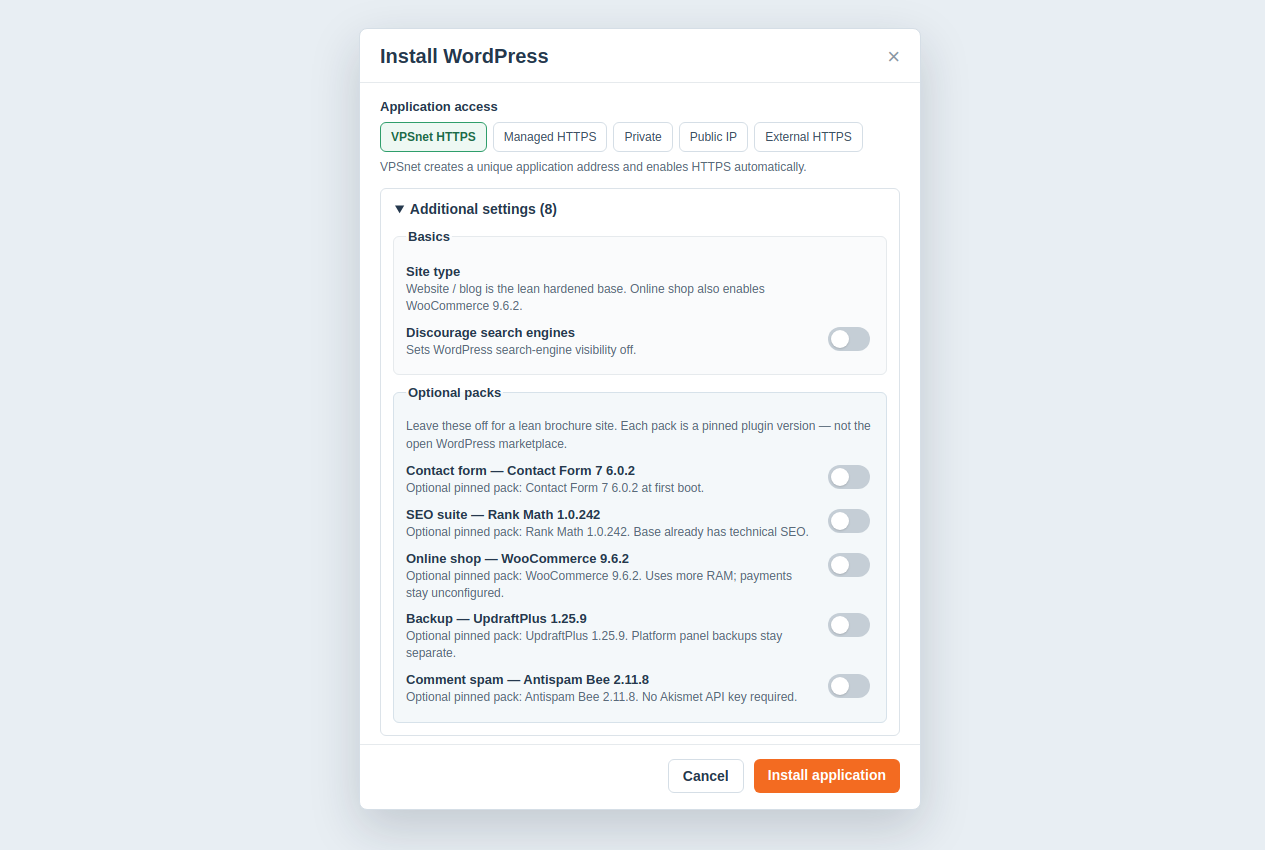
Optional packs show the exact pinned plugin versions. Leave them off for a lean site. Claim one-time secrets
After install, the Applications panel shows the admin username and password once. Copy them into your password manager before you close the dialog — they are never emailed.
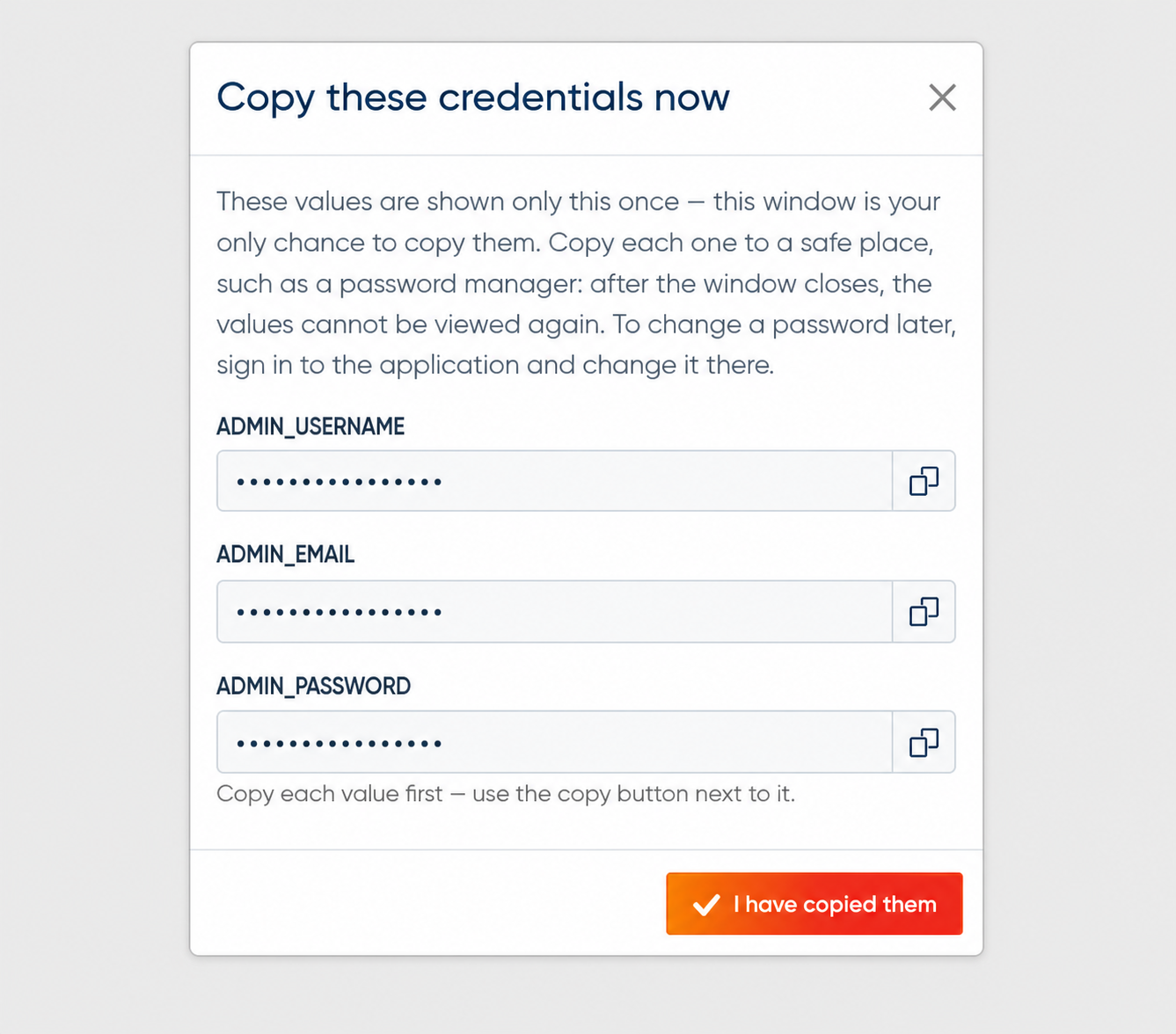
Generic panel illustration; copy the actual WordPress credentials shown for your installation. Wait for HTTPS, then Open URL
WordPress uses a managed *.vpsnet.cloud hostname (or the hostname assigned at install). When the certificate is active, Open URL from Applications and sign in to /wp-admin with the admin account you claimed.
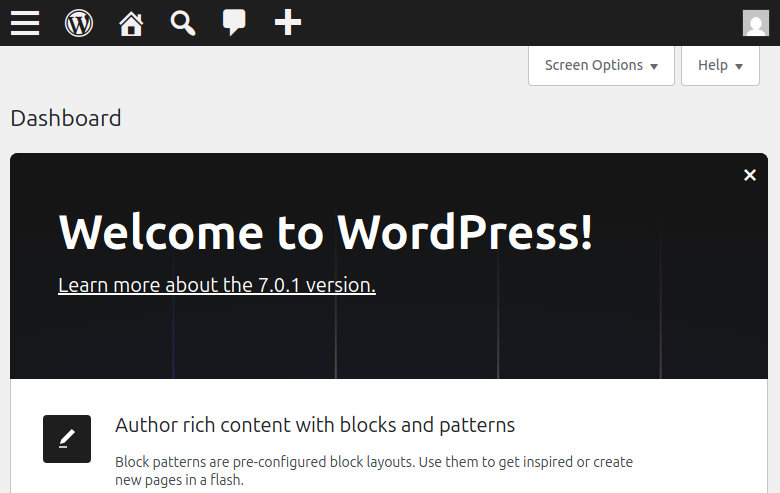
wp-admin after Open URL on managed HTTPS Update, restart, logs, and uninstall
Restart, logs, health, updates, and uninstall stay in the Applications panel. Bundled themes can be switched in wp-admin. Adding plugins from wordpress.org is not available on this managed recipe. Prefer panel actions over deleting containers by hand.
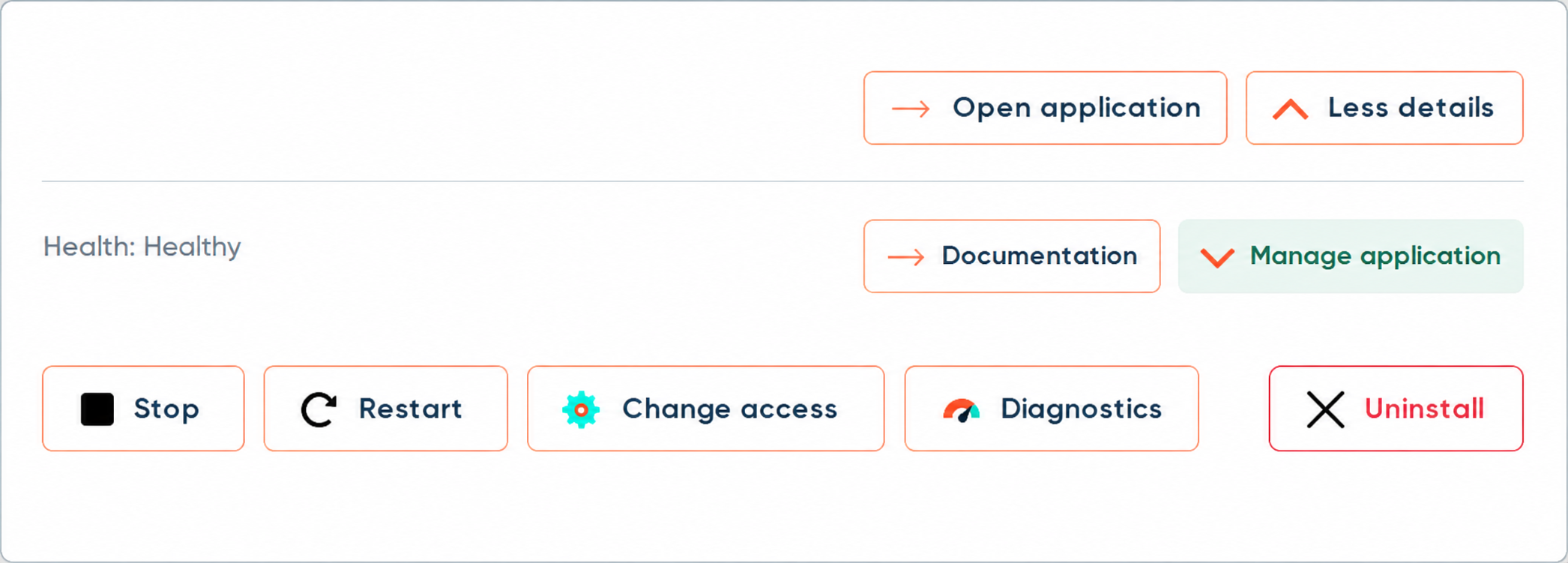
Generic panel illustration of restart, recover, access, and uninstall controls.
Options in the install dialog
The Applications → Install dialog is more than a single Install button. These controls appear when the recipe supports them. Safe defaults apply if you leave optional fields unchanged.
Application access
Choose how you reach the app at install time: VPSnet HTTPS (managed *.vpsnet.cloud), Private (this server only), Public IP (cleartext HTTP), Managed HTTPS on a DNS zone you own, or External HTTPS when you terminate SSL. You can change this later on the installation page.
Additional settings
Expand Additional settings for optional recipe fields and packs. Empty fields keep recipe defaults. Fields marked as generated may be left empty, or filled when the recipe exposes them for customer input.
Runtime restart
The first managed app on a server may need a short runtime restart. The dialog asks for confirmation. Later installs on the same server usually skip this.
WordPress on VPSnet
Real UI from a managed install — the same path you get from Applications → Open URL.
Managed WordPress after install Pinned Optional packs: Contact Form 7 6.0.2, Rank Math 1.0.242, WooCommerce 9.6.2 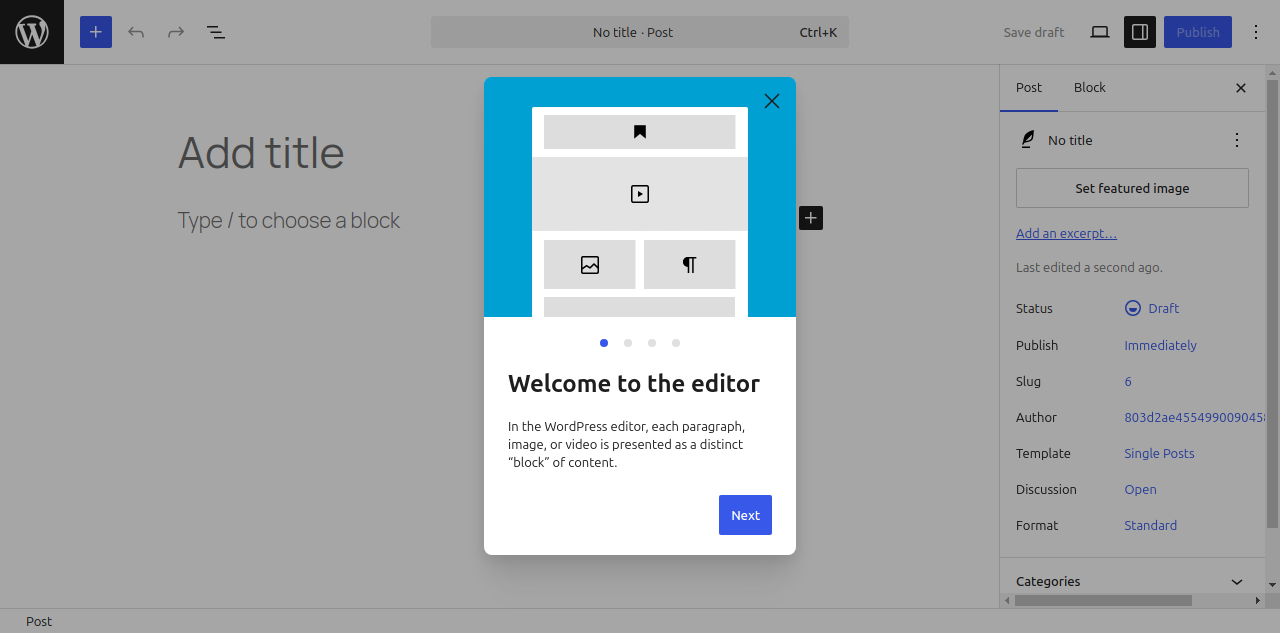
Publish your first post
First usage of WordPress
After Open URL, sign in with the secrets you claimed — or finish the in-app admin wizard if this recipe has no panel password. Complete one real job so the install is useful, not only healthy. Optional packs you enabled at install still need their own first-run inside the app.
Sign in to wp-admin
Open URL from Applications, then sign in at /wp-admin with the username and password you claimed. The username may be a long generated string — paste it. Passwords are never emailed.
Finish site settings
Settings → General: confirm site title and timezone, and change the admin email from the generated address to one you control. Settings → Permalinks: keep pretty permalinks (Post name). Settings → Reading: “Discourage search engines” matches the install checkbox. You can switch a bundled theme under Appearance → Themes. Adding themes or plugins from wordpress.org is not available.
Publish your first post or page
In wp-admin, create a draft post or page and publish it, then view it on the public site. This confirms that publishing works.
Finish Optional pack first-run (only if enabled)
Skip this if you left Optional packs off (the lean default). Contact Form 7 6.0.2 — Contact → edit the default form and paste the shortcode on a page (sending mail still needs SMTP). Rank Math 1.0.242 — complete the setup wizard; do not add a second SEO plugin. WooCommerce 9.6.2 — finish the store wizard; payments stay unconfigured; Site type Online shop also enables this pack. Plugins → Add New stays blocked.
All configuration variables
Customer-editable fields from the public catalog API for this recipe version, plus curated tips where we publish them. In the panel these fields live under Additional settings (Basics and Optional packs). Access mode is a separate control above that section.
| Variable | Label | Type | Required | Secret | Default | Meaning |
|---|---|---|---|---|---|---|
SITE_TITLE | Site title | string | Required | No | Managed WordPress | Title used when the managed WordPress site is created. |
Additional notes
- Database and admin passwords are generated when omitted. They appear once under Secrets in the Applications panel after install.
- Optional packs: Contact Form 7 6.0.2, Rank Math 1.0.242, and WooCommerce 9.6.2. All default off. Plugins → Add New stays blocked.
How you reach the app and claim secrets
Owner and admin credentials appear once in the VPSnet panel after install — they are never emailed. Most web UIs use managed HTTPS on *.vpsnet.cloud. Choose the access mode in the install dialog, then switch it later from the installation page (private, public HTTP, Managed HTTPS, or advanced External HTTPS when you terminate SSL yourself).
Sizing and tested targets
| Requirement | vCPU | RAM | NVMe |
|---|---|---|---|
| Minimum | 2 | 2 GB | 10 GB |
| Recommended | 4 | 4 GB | 25 GB |
| Server type | Operating system | Architecture |
|---|---|---|
| VPS | Almalinux 10 | x86_64 |
| VPS and Cloud VPS | Almalinux 9 | x86_64 |
| VPS | Centos stream 10 | x86_64 |
| VPS and Cloud VPS | Centos stream 9 | x86_64 |
| VPS | Rocky 10 | x86_64 |
| VPS and Cloud VPS | Rocky 9 | x86_64 |
| VPS and Cloud VPS | Ubuntu 24.04 | x86_64 |
| Cloud VPS | Almalinux 8 | x86_64 |
| Cloud VPS | Arch latest | x86_64 |
| Cloud VPS | Debian 11 | x86_64 |
| Cloud VPS | Fedora 39 | x86_64 |
| Cloud VPS | Fedora 40 | x86_64 |
| Cloud VPS | Opensuse 15.5 | x86_64 |
| Cloud VPS | Oracle 9 | x86_64 |
| Cloud VPS | Rocky 8 | x86_64 |
| Cloud VPS | Ubuntu 20.04 | x86_64 |
FAQ
01I lost the WordPress admin password.
One-time secrets are shown once and never emailed. Use recovery in the Applications panel for that install, or contact support if none is shown. Do not reset MySQL via SSH as the first step.
02How do I update WordPress core?
Prefer Applications → Update when an update is offered. In-app WordPress updates may still appear in wp-admin depending on the release — follow the product page for that version.
03Can I install extra plugins (SEO, forms, WooCommerce) from wp-admin?
Plugins → Add New stays blocked. During installation you can choose pinned Optional packs whose versions appear in the checkbox labels: Contact Form 7 6.0.2, Rank Math 1.0.242, and WooCommerce 9.6.2.
04What should I do first after WordPress is installed?
Sign in at /wp-admin, fix Settings → General (email and timezone), then publish a page or post. If you enabled Optional packs at install, add the Contact Form 7 shortcode, finish the Rank Math wizard, or finish the WooCommerce wizard as applicable. Do not use Plugins → Add New.