
How to install Nextcloud on VPSnet
Install Nextcloud from Applications with a generated admin password and managed HTTPS. First useful task: upload a file and open a public share link.
Prerequisites
Only what you need before the install steps below — nothing repeated from the guide.
A VPSnet account with access to the control panel.
A VPS or Cloud VPS that meets the Nextcloud resource guidance on the product page.
Install Nextcloud from the panel
Follow the Applications panel path end to end. Each step covers one action only.
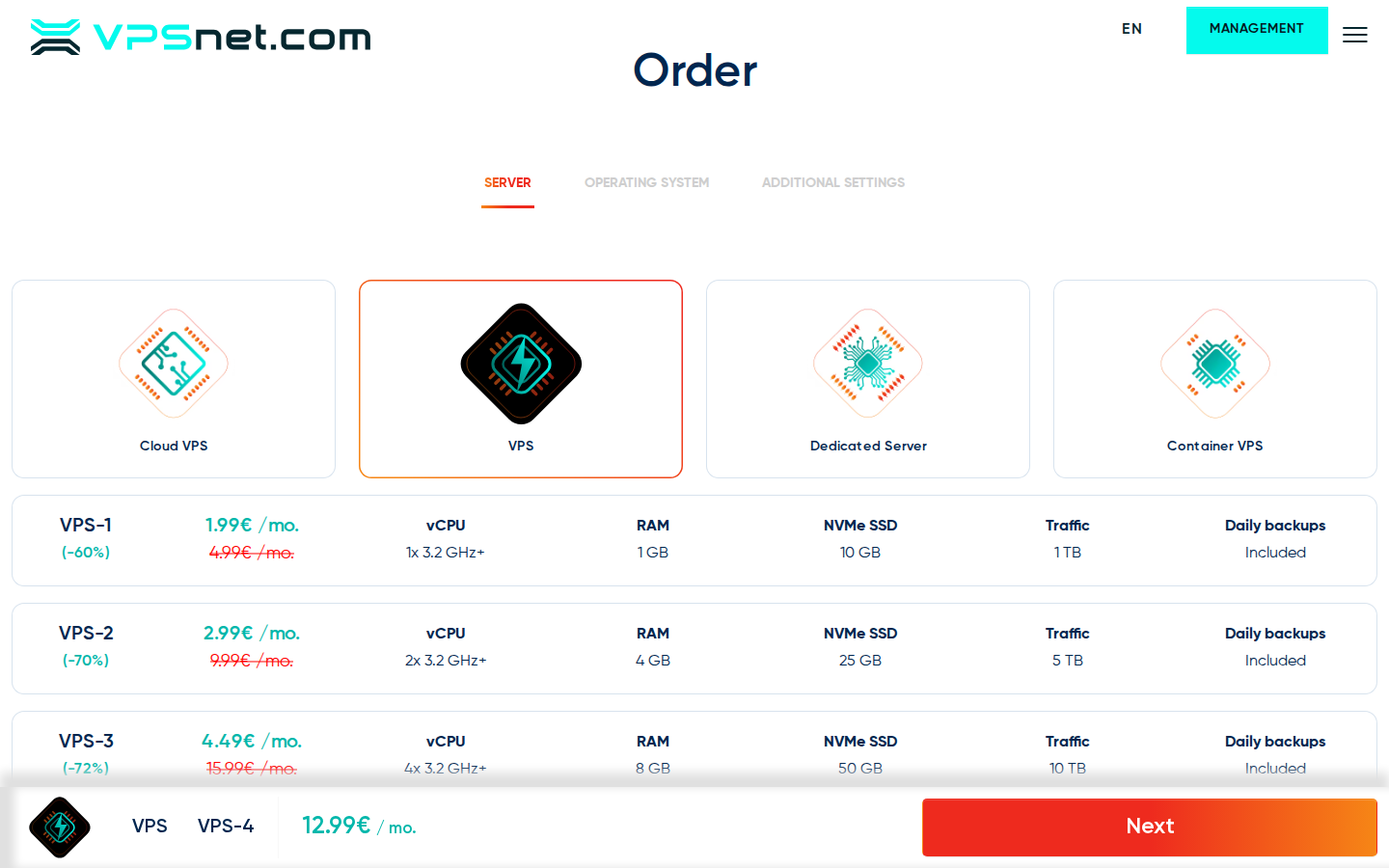
Choose a plan for Nextcloud
Open the Nextcloud product page and note minimum and recommended vCPU, RAM, and disk. Order a new Cloud VPS or VPS, or use a running server that still has free capacity.
Install from Applications
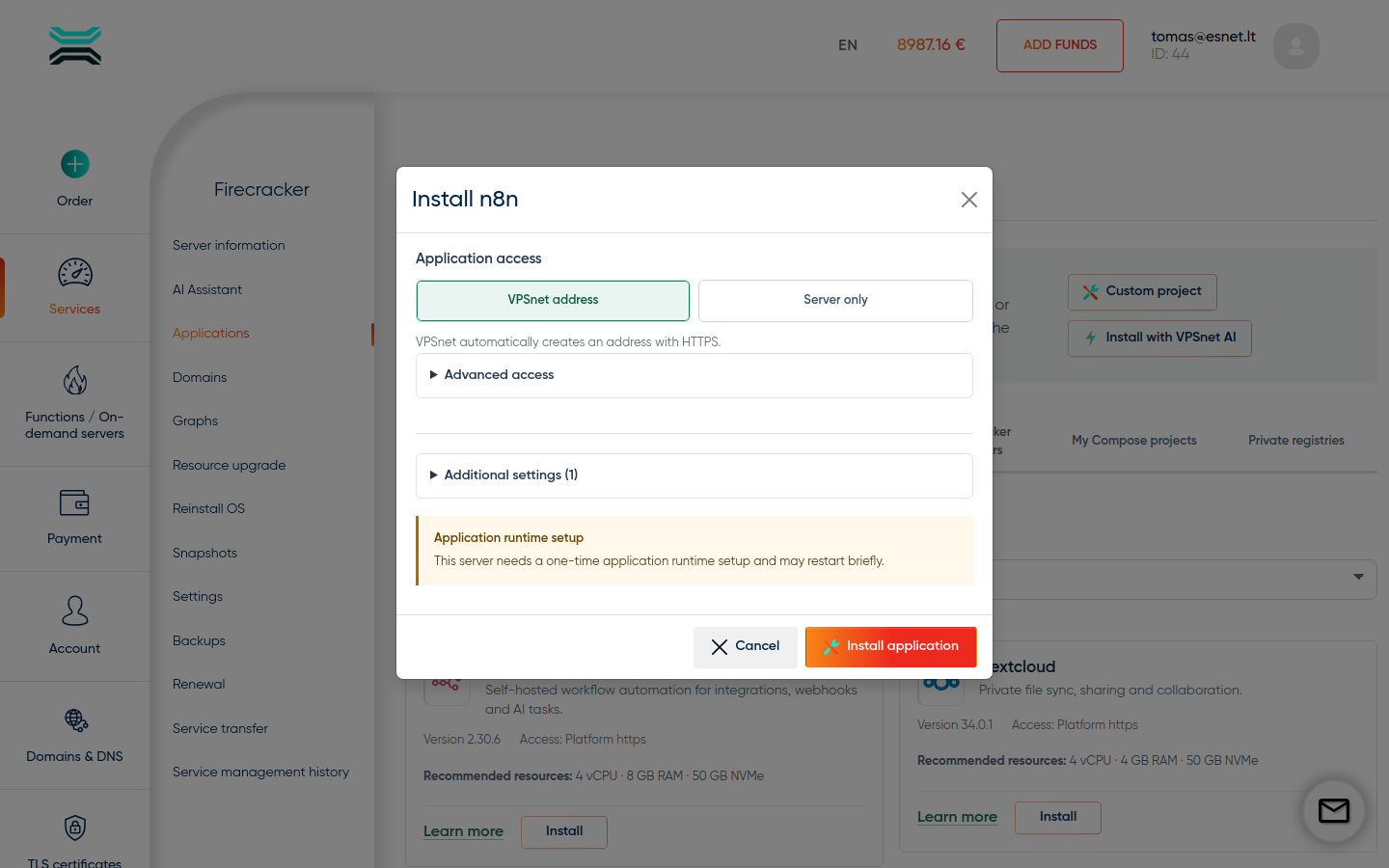
In the service panel open Applications → Nextcloud → Install. Choose an access mode and expand Additional settings. If a customer-editable password field is offered, enter your own strong value or leave it empty for VPSnet to generate a random one. Confirm a runtime restart if the panel asks.
Save one-time credentials
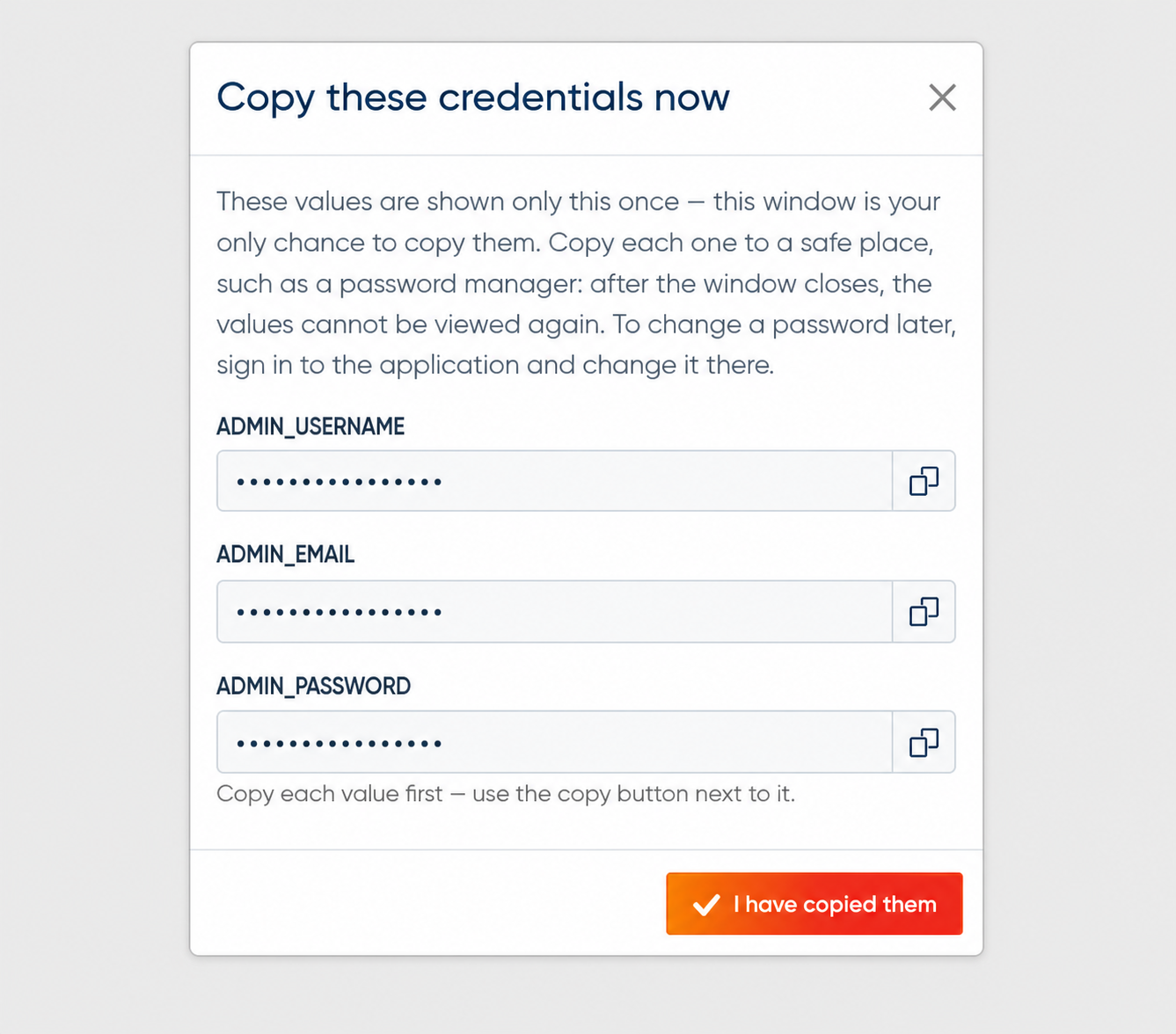
When install finishes, the panel shows owner or admin credentials once. Copy them into your password manager immediately — they are never sent by email. If you closed the dialog too early, use the recovery path on that install in Applications.
Open the managed HTTPS URL
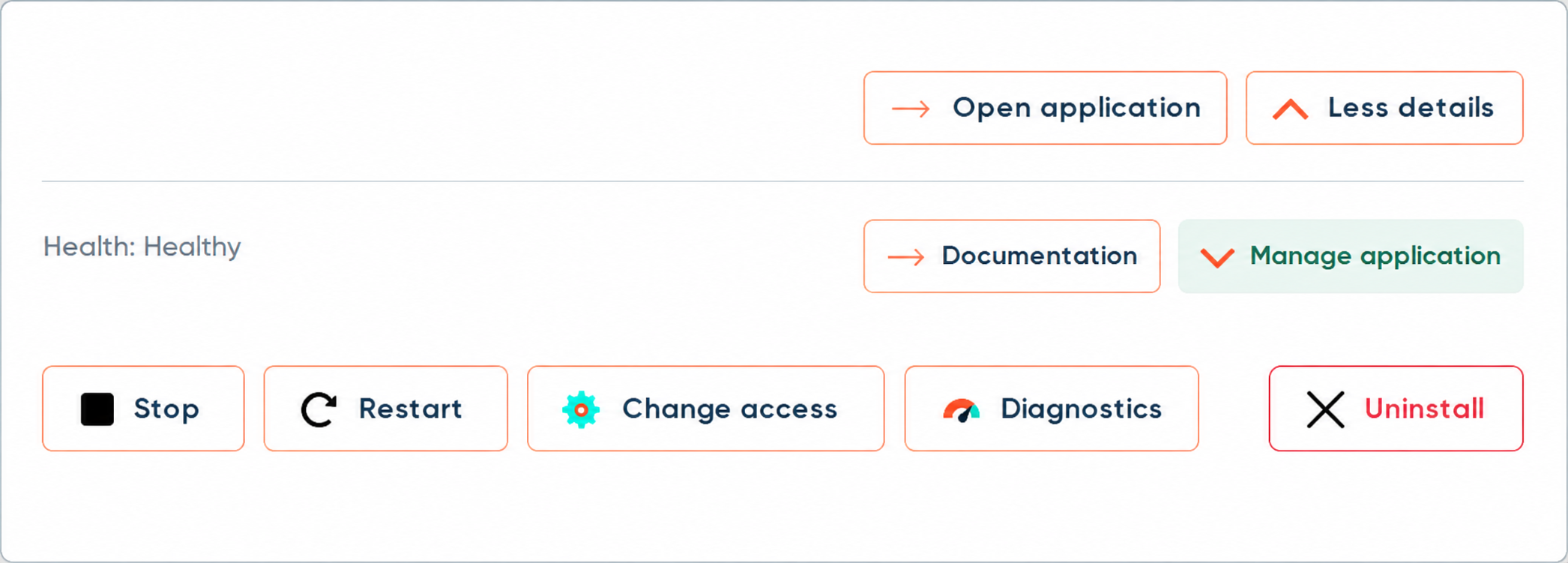
When Nextcloud exposes a web UI, VPSnet assigns a *.vpsnet.cloud hostname. A short Certificate pending state is normal while DNS and SSL finish. When the status is active, use Open URL in Applications.
Sign in, upload a file, and share a link
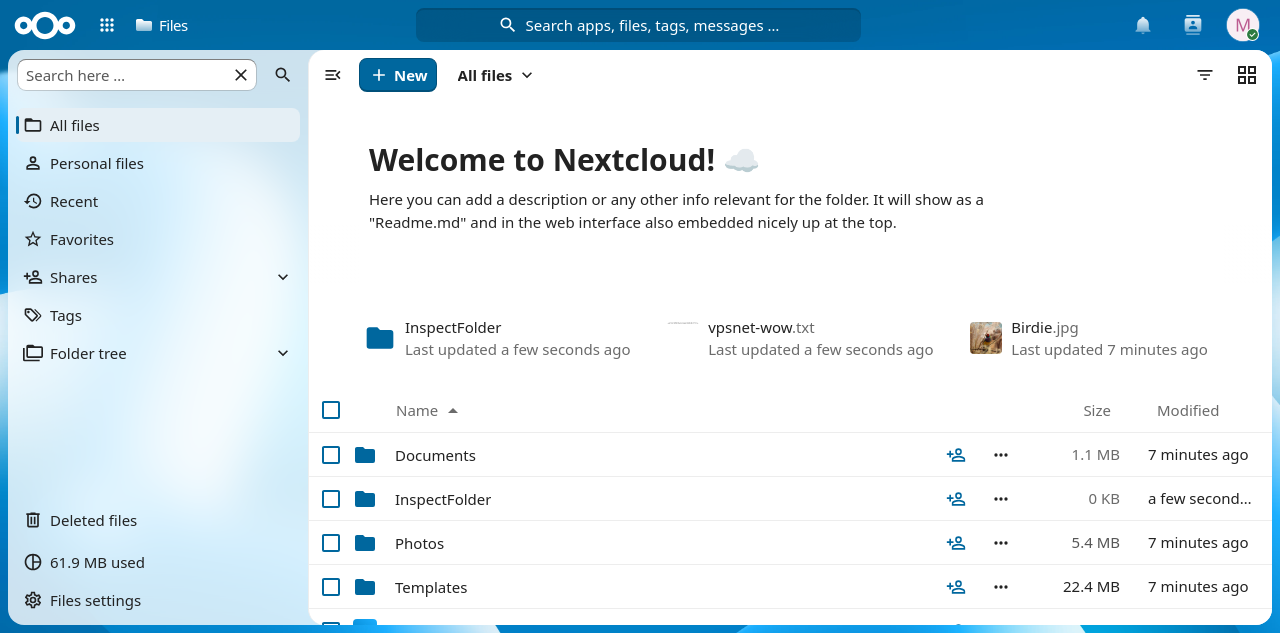
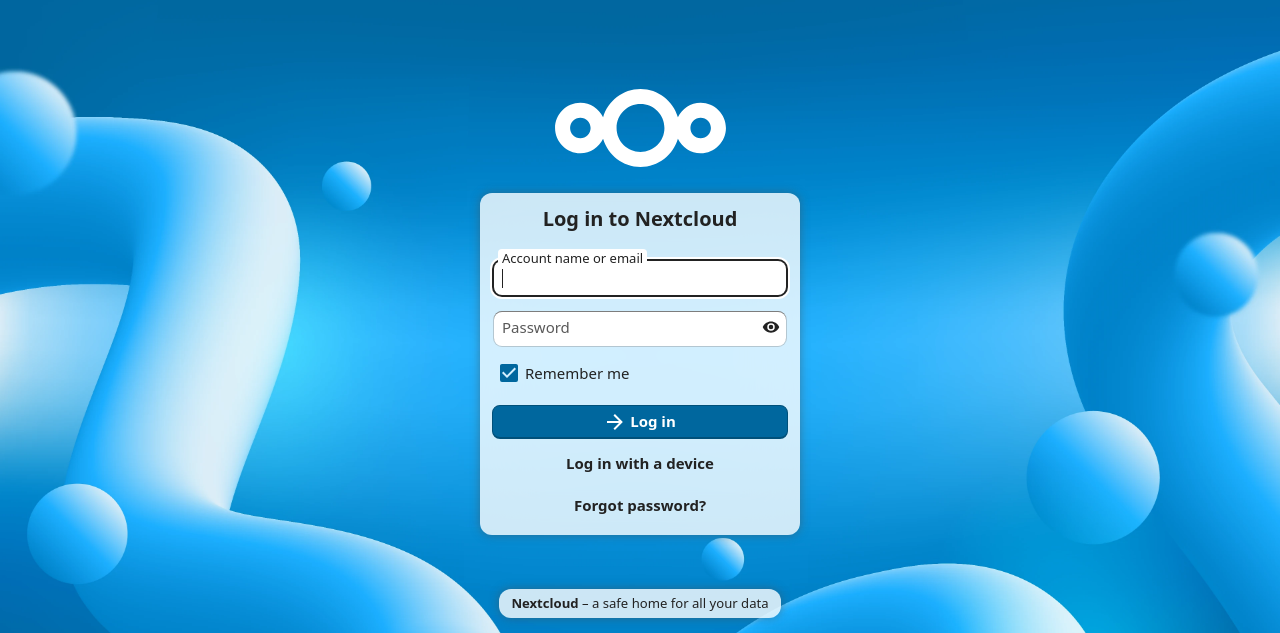
Open Nextcloud and sign in as managed-admin (or the username you set under Additional settings) with the one-time password from Applications. Open Files, upload a small text or image, open it, then create a public share link and open that link in a private window. After a panel Restart, confirm the file is still there.
Operate from the panel
Use Applications for restart, logs, health, update, and uninstall. Avoid editing the host Compose by hand — catalog installs are version-pinned managed recipes.
Options in the install dialog
The Applications → Install dialog is more than a single Install button. These controls appear when the recipe supports them. Safe defaults apply if you leave optional fields unchanged.
Application access
Choose how you reach the app at install time: VPSnet HTTPS (managed *.vpsnet.cloud), Private (this server only), Public IP (cleartext HTTP), Managed HTTPS on a DNS zone you own, or External HTTPS when you terminate SSL. You can change this later on the installation page.
Additional settings
Expand Additional settings for optional recipe fields and packs. Empty fields keep recipe defaults. Fields marked as generated may be left empty, or filled when the recipe exposes them for customer input.
Runtime restart
The first managed app on a server may need a short runtime restart. The dialog asks for confirmation. Later installs on the same server usually skip this.
First usage of Nextcloud
Save the one-time admin password when install finishes. After Open URL, sign in, upload one file, and share it with a public link so the install is useful, not only healthy.
Sign in with the one-time admin password
Username defaults to managed-admin unless you changed Administrator username under Additional settings. Paste the password shown once in Applications — it is not emailed.
Upload a file in Files
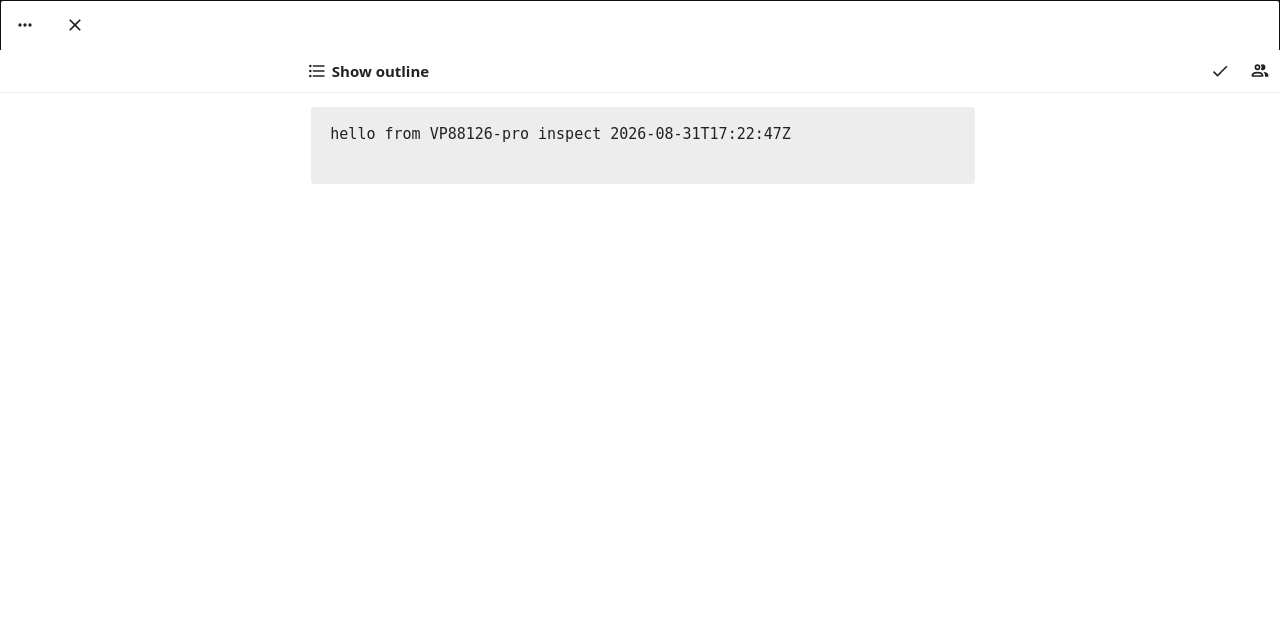
Open Files and upload a small text or image, or create a folder. Opening the file confirms the viewer works on this install.
Open a public share as a visitor
On the uploaded file, create a public link and open it in a private window. A visitor should see the file without a Nextcloud account. This confirms that sharing works for visitors.
All configuration variables
Customer-editable fields from the public catalog API for this recipe version, plus curated tips where we publish them. In the panel these fields live under Additional settings (Basics and Optional packs). Access mode is a separate control above that section.
| Variable | Label | Type | Required | Secret | Default | Meaning |
|---|---|---|---|---|---|---|
ADMIN_USERNAME | Administrator username | string | Required | No | managed-admin | Keep managed-admin or enter another username for the first Nextcloud administrator. |
Additional notes
- The install dialog has more than the variables table: Application access (VPSnet HTTPS, Private, Public IP, Managed HTTPS, External HTTPS when offered), Use VPSnet AI plus a model picker when the recipe supports it, Additional settings (Basics and Optional packs), and a runtime restart confirmation on the first managed install.
How you reach the app and claim secrets
Owner and admin credentials appear once in the VPSnet panel after install — they are never emailed. Most web UIs use managed HTTPS on *.vpsnet.cloud. Choose the access mode in the install dialog, then switch it later from the installation page (private, public HTTP, Managed HTTPS, or advanced External HTTPS when you terminate SSL yourself).
Sizing and tested targets
| Requirement | vCPU | RAM | NVMe |
|---|---|---|---|
| Minimum | 2 | 2 GB | 20 GB |
| Recommended | 4 | 4 GB | 50 GB |
| Server type | Operating system | Architecture |
|---|---|---|
| VPS | Almalinux 10 | x86_64 |
| VPS and Cloud VPS | Almalinux 9 | x86_64 |
| VPS | Centos stream 10 | x86_64 |
| VPS and Cloud VPS | Centos stream 9 | x86_64 |
| VPS and Cloud VPS | Debian 12 | x86_64 |
| VPS and Cloud VPS | Debian 13 | x86_64 |
| VPS | Rocky 10 | x86_64 |
| VPS and Cloud VPS | Rocky 9 | x86_64 |
| VPS and Cloud VPS | Ubuntu 22.04 | x86_64 |
| VPS and Cloud VPS | Ubuntu 24.04 | x86_64 |
| VPS | Ubuntu 26.04 | x86_64 |
| Cloud VPS | Almalinux 8 | x86_64 |
| Cloud VPS | Arch latest | x86_64 |
| Cloud VPS | Debian 11 | x86_64 |
| Cloud VPS | Fedora 39 | x86_64 |
| Cloud VPS | Fedora 40 | x86_64 |
| Cloud VPS | Opensuse 15.5 | x86_64 |
| Cloud VPS | Oracle 9 | x86_64 |
| Cloud VPS | Rocky 8 | x86_64 |
| Cloud VPS | Ubuntu 20.04 | x86_64 |
FAQ
01Login loops after switching to Public HTTP.
Nextcloud may still believe the site is HTTPS from the original VPSnet address install. Prefer waiting for managed HTTPS. Public HTTP is an emergency fallback, not the normal access method.
02I closed the credentials dialog without saving the password.
Open that install in Applications and use the recovery path shown there, or contact support if recovery is not offered.
03Open URL still shows Certificate pending after several minutes.
Confirm the install health is green, then wait for DNS/SSL to finish. If access settings offer temporary public HTTP, you can use it only as a short workaround.
04Where are timezone, add-ons, and other extra install options?
Expand Additional settings in the install dialog for optional recipe fields and packs. If a customer-editable password field is offered, enter your own strong value or leave it empty for VPSnet to generate a random one. You can change access later from the installation page.
05I need environment variables that are not in the install form.
Only customer-editable blueprint fields are exposed at install and in the table below. Remaining env belongs to the managed recipe. Custom Compose is a separate advanced option when enabled on the service.