
How to install n8n on VPSnet
Install n8n on your own VPS, save the generated owner sign-in once, and publish a working automation over managed HTTPS — without maintaining the container stack yourself.
Prerequisites
Only what you need before the install steps below — nothing repeated from the guide.
A VPSnet account. Installation, Open URL, health, logs, updates, and uninstall are managed from the Applications panel.
A VPS (Firecracker) or Cloud VPS that meets n8n minimum and recommended vCPU, RAM, and disk on the product page.
SSH is optional. Install and open n8n from the Applications panel — no SSH required.
A password manager for the generated ADMIN_EMAIL and ADMIN_PASSWORD. The panel shows these values once after installation; they are not sent by email.
Install n8n from the panel
Follow the Applications panel path end to end. Each step covers one action only.
Order a server that fits n8n
Check the n8n product page for minimum and recommended vCPU, RAM, and disk. Order Cloud VPS or VPS, or reuse a server with free capacity. Install at order time or later from Applications.
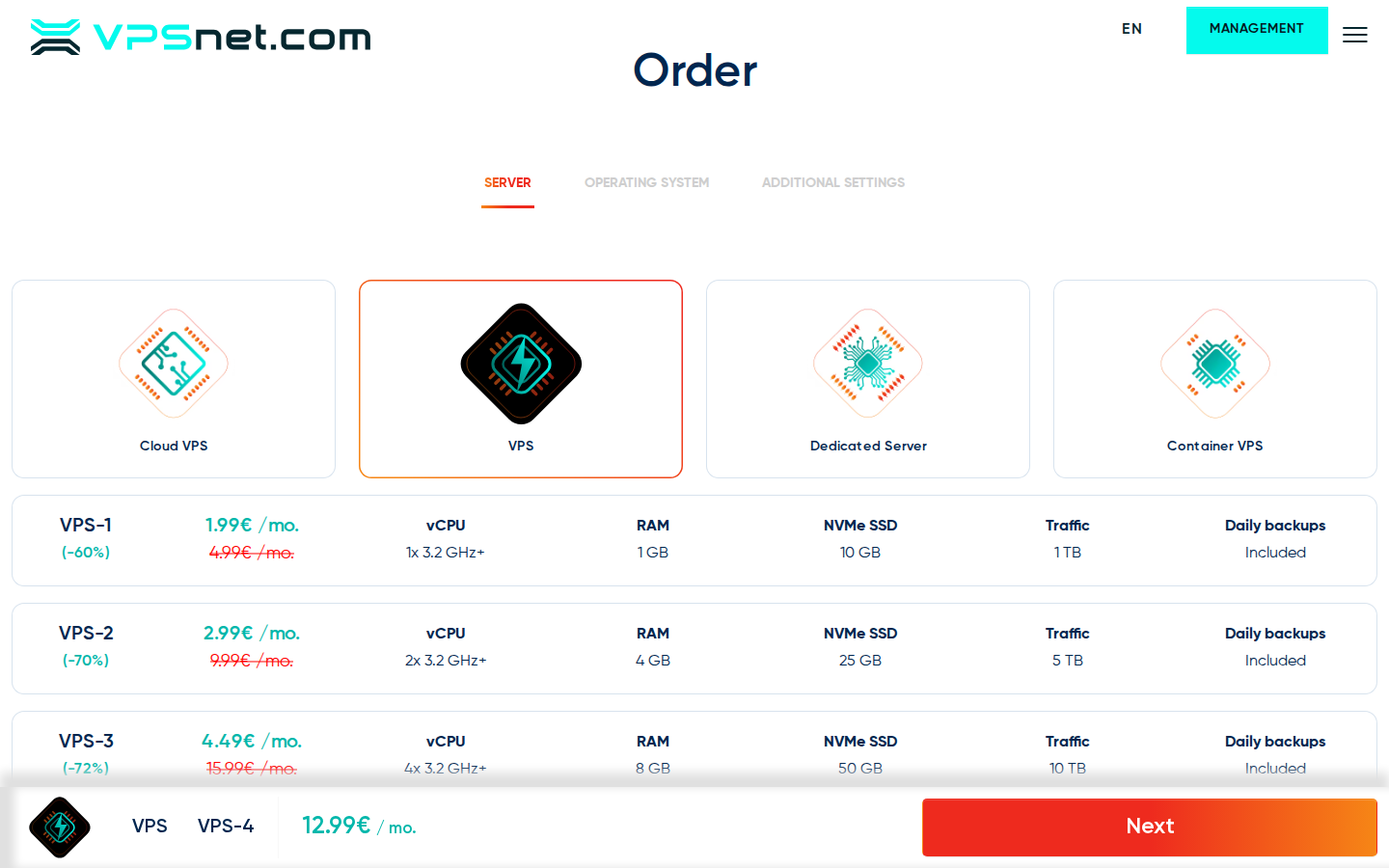
Choose a suitable server, then select n8n during ordering or install it later from Applications. Install n8n from Applications
Open the service → Applications → n8n → Install. Choose the access mode and set TIMEZONE if offered. If this recipe version offers a customer-editable password field, enter your own strong value or leave it empty for VPSnet to generate a random one. Confirm a restart when the panel asks.
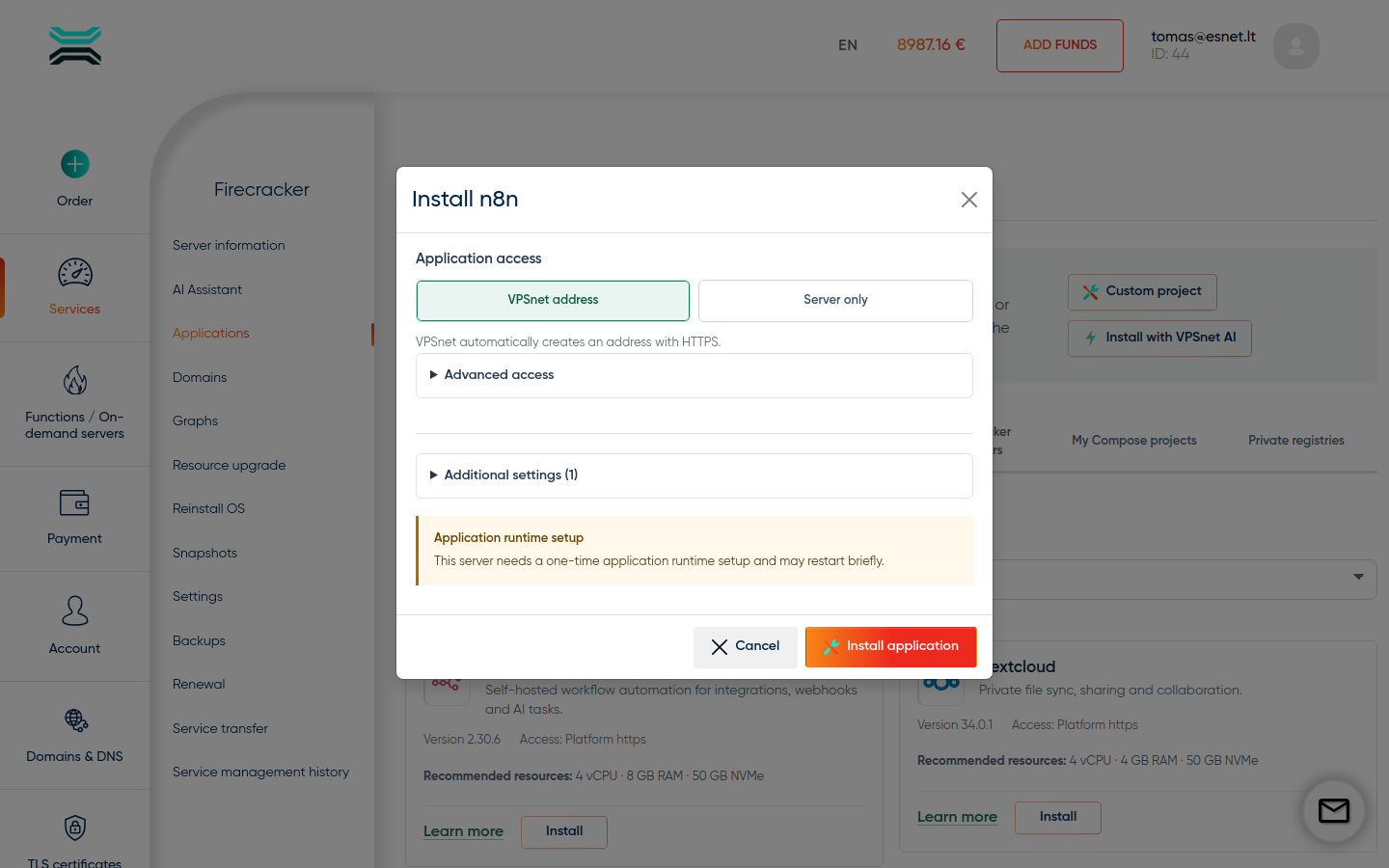
Set the timezone if needed; the recipe prepares the initial owner sign-in automatically. Wait for HTTPS, then Open URL
n8n uses a managed *.vpsnet.cloud hostname. A short Certificate pending period is normal while DNS and SSL are prepared, even when the application is already healthy. Save the generated owner sign-in from Applications, then choose Open URL when HTTPS becomes active.
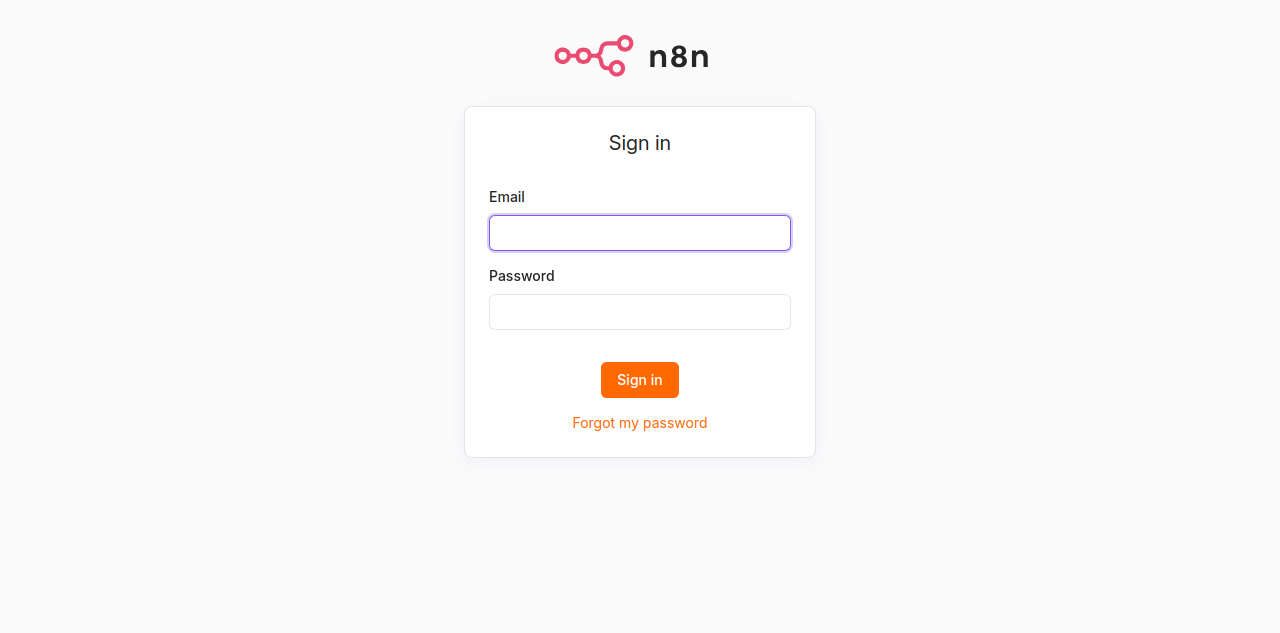
After saving the generated sign-in, Open URL leads to n8n over HTTPS. Save the generated owner sign-in
After installation, choose Show generated credentials in Applications. Copy ADMIN_EMAIL and ADMIN_PASSWORD before closing the dialog, then store both in your password manager. These values are shown only once and are not sent by email.
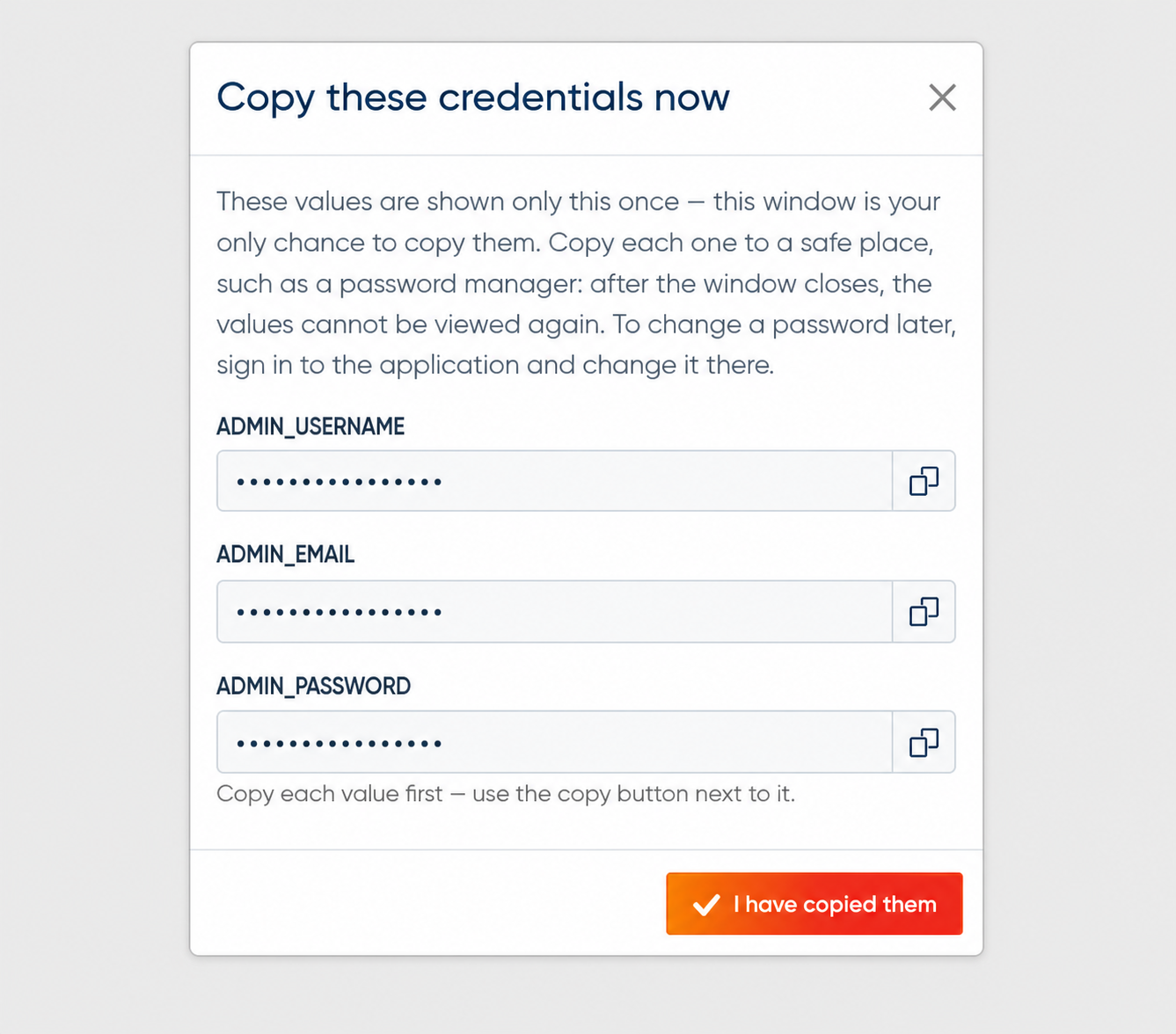
Generic panel illustration; copy every generated value shown for your installation before closing the dialog. Update, restart, logs, and uninstall
Use the Applications panel for restart, logs, health, updates, and uninstall. Catalog n8n is a managed recipe with pinned images and healthchecks — not raw Docker Compose on the host.
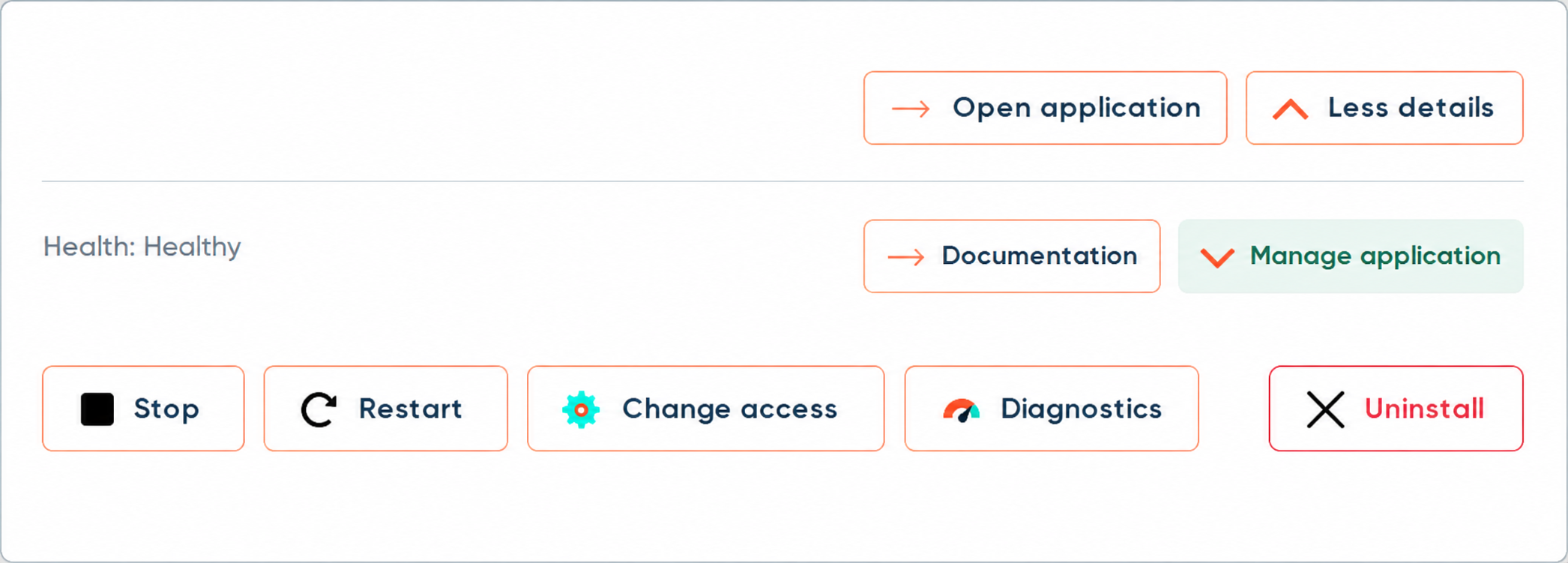
Generic panel illustration of restart, recover, access, diagnostics, and uninstall controls.
Options in the install dialog
The Applications → Install dialog is more than a single Install button. These controls appear when the recipe supports them. Safe defaults apply if you leave optional fields unchanged.
Application access
Choose how you reach the app at install time: VPSnet HTTPS (managed *.vpsnet.cloud), Private (this server only), Public IP (cleartext HTTP), Managed HTTPS on a DNS zone you own, or External HTTPS when you terminate SSL. You can change this later on the installation page.
Additional settings
Expand Additional settings for optional recipe fields and packs. Empty fields keep recipe defaults. Fields marked as generated may be left empty, or filled when the recipe exposes them for customer input.
Runtime restart
The first managed app on a server may need a short runtime restart. The dialog asks for confirmation. Later installs on the same server usually skip this.
First usage of n8n
Sign in with the ADMIN_EMAIL and ADMIN_PASSWORD you saved from Applications. Then build, run, inspect, and publish one small workflow before connecting production accounts.
Build a small test workflow
Choose Create workflow. Add Manual Trigger, connect an Edit Fields (Set) node, enter a sample value, and give the workflow a clear name such as First n8n test. This proves the editor and saved workflow state before you connect a real service.
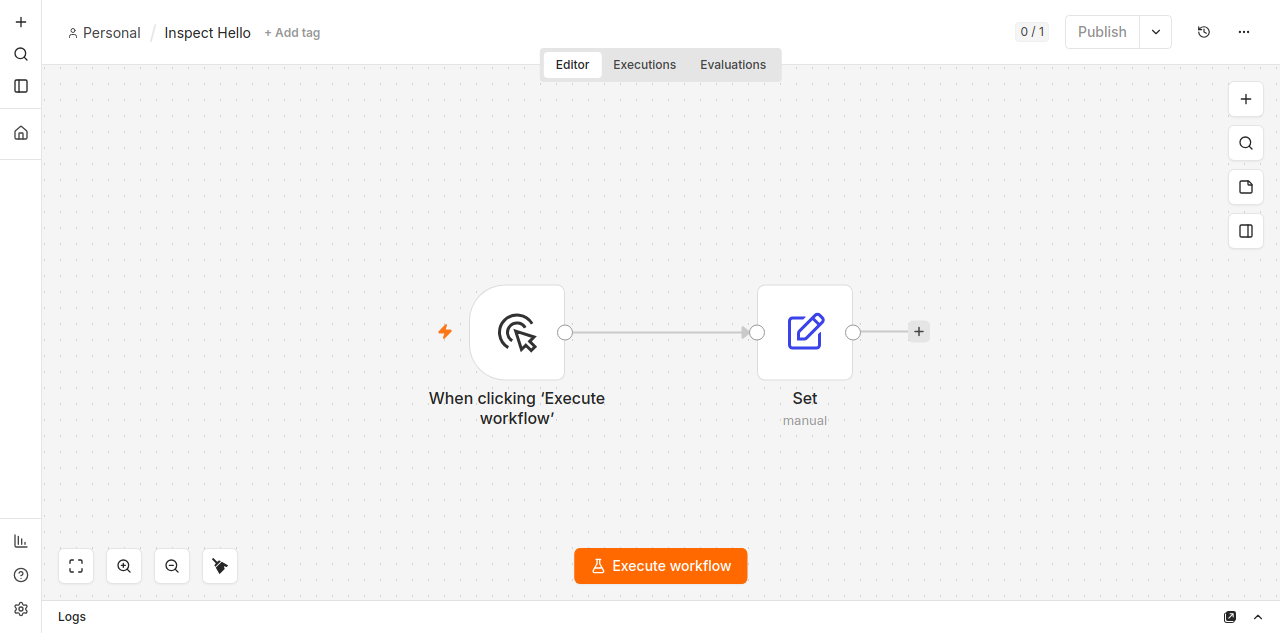
Start with a manual trigger and one simple data step. Run it and inspect the result
Choose Execute workflow. Both nodes should turn green and the connection should show one item. Open the Set node’s output to check the value you entered. Fix any red node before moving on.
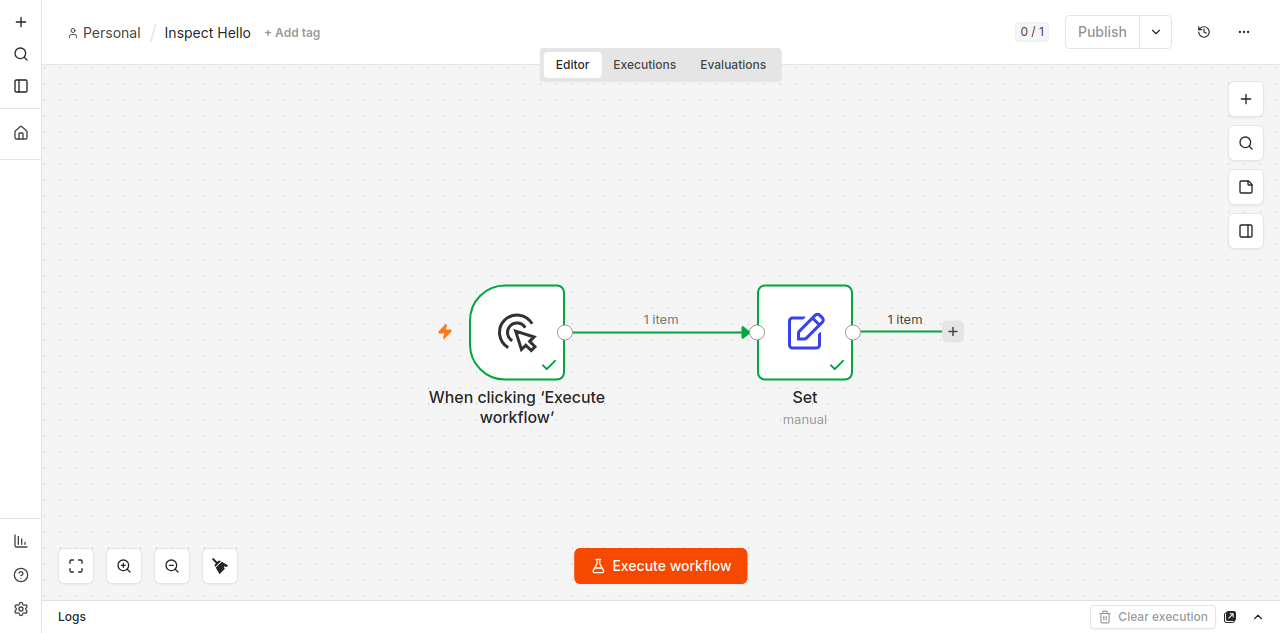
A green path and one item confirm that the workflow executed. Check execution history
Return to Overview → Executions. Open the successful run to review its nodes, input, output, and duration. This is also where you investigate failed production runs and retry them after correcting the workflow.
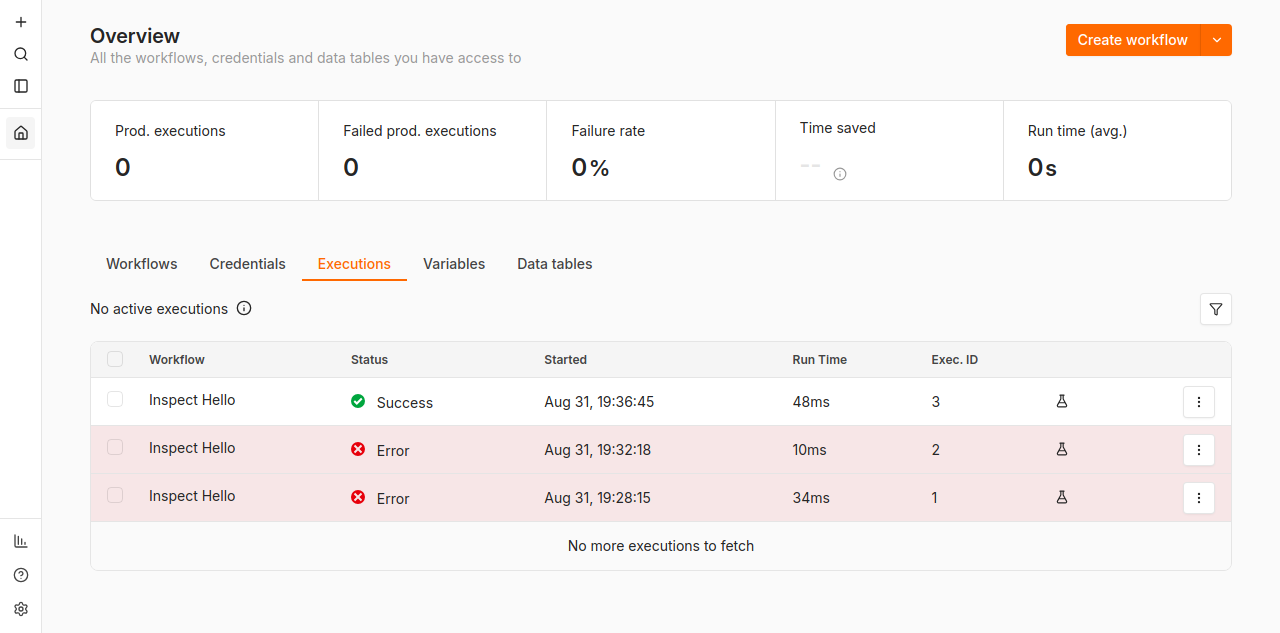
Execution history records status, start time, and run time. Add an integration credential (optional)
Open Overview → Credentials and create the credential required by your next node, such as Header Auth or OAuth2. Use a test account first. Keep API keys inside n8n, restrict their permissions, and never paste production tokens into chats or support tickets.
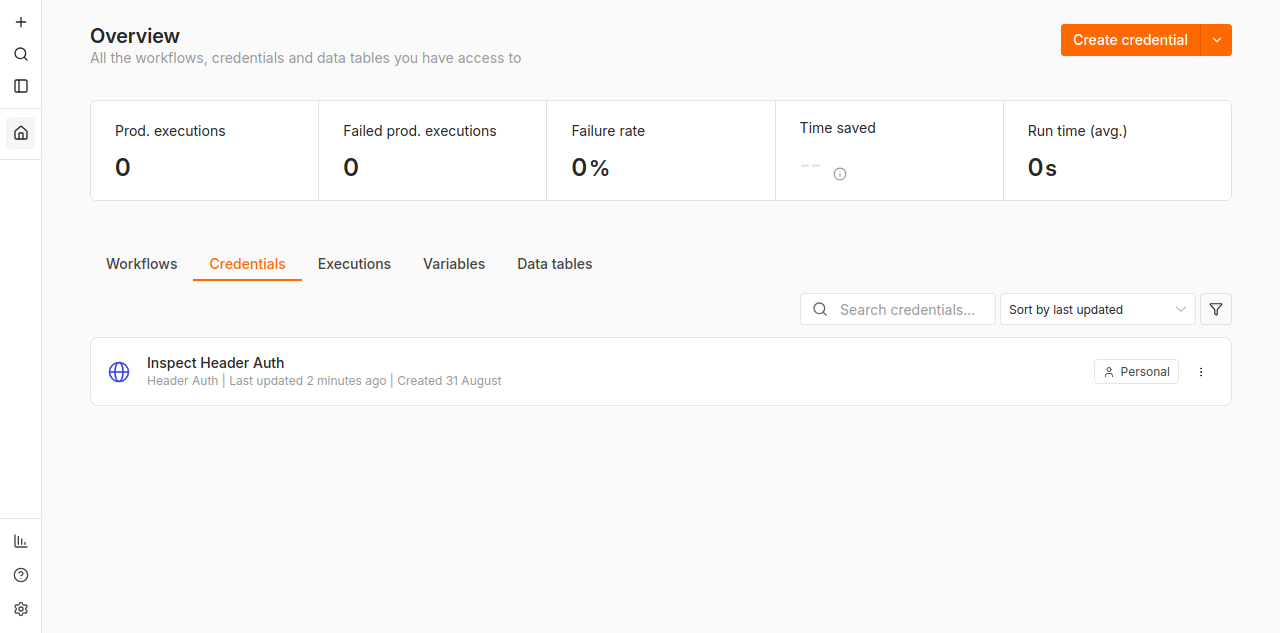
Credentials stay in n8n and can be reused by workflow nodes. Add a real trigger and publish
Manual Trigger is only for testing. Replace it with Schedule Trigger or Webhook. For a webhook, use its Test URL while Execute workflow is listening, verify one sample request, then save and choose Publish. Use the Production URL only after publishing; production runs appear under Executions.
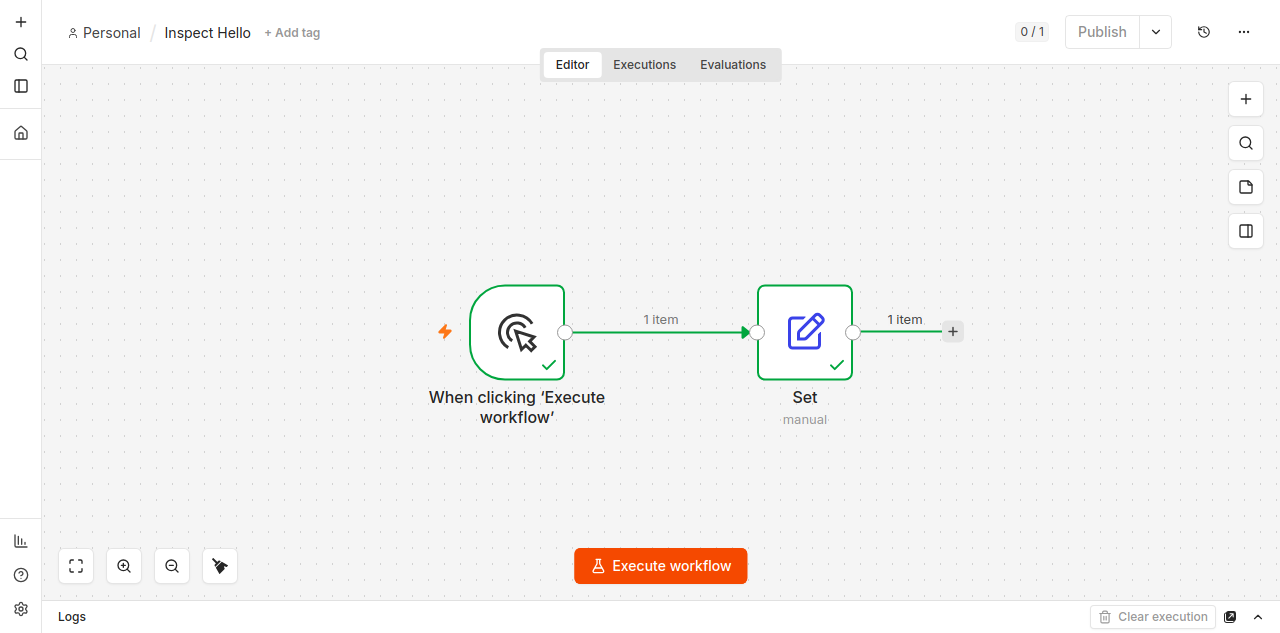
Use an automatic trigger before publishing the workflow. Confirm that your work persists
Restart n8n from the VPSnet Applications panel, reopen it, and confirm that your workflows, credentials, and execution history are still present. This checks the managed data volumes before you depend on the automation.
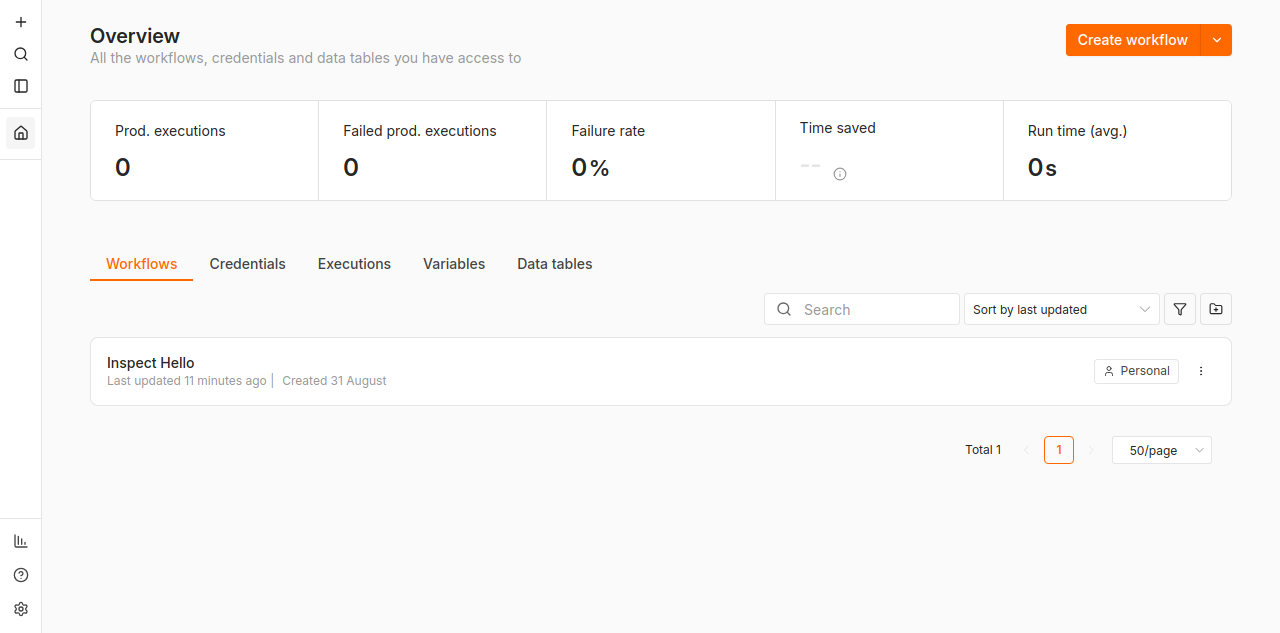
The reviewed canary retained both workflows after restart.
All configuration variables
Customer-editable fields from the public catalog API for this recipe version, plus curated tips where we publish them. In the panel these fields live under Additional settings (Basics and Optional packs). Access mode is a separate control above that section.
| Variable | Label | Type | Required | Secret | Default | Meaning |
|---|---|---|---|---|---|---|
TIMEZONE | Workflow timezone | string | Required | No | Europe/Vilnius | IANA timezone used by schedules, for example Europe/Vilnius. · Use a valid IANA timezone (for example Europe/Vilnius or UTC). In the install dialog this field is under Additional settings. Schedule triggers and date nodes use this value. Changing it later may require a restart from the Applications panel. |
ADMIN_EMAIL | Administrator email | email | Required | Secret | — | — |
Additional notes
- Advanced n8n options (custom queue workers, multi-node, custom reverse proxy) stay with the managed recipe. Prefer Applications access modes and documented fields over editing Compose on the host.
How you reach the app and claim secrets
Owner and admin credentials appear once in the VPSnet panel after install — they are never emailed. Most web UIs use managed HTTPS on *.vpsnet.cloud. Choose the access mode in the install dialog, then switch it later from the installation page (private, public HTTP, Managed HTTPS, or advanced External HTTPS when you terminate SSL yourself).
Sizing and tested targets
| Requirement | vCPU | RAM | NVMe |
|---|---|---|---|
| Minimum | 2 | 4 GB | 25 GB |
| Recommended | 4 | 8 GB | 50 GB |
| Server type | Operating system | Architecture |
|---|---|---|
| VPS | Almalinux 10 | x86_64 |
| VPS and Cloud VPS | Almalinux 9 | x86_64 |
| VPS | Centos stream 10 | x86_64 |
| VPS and Cloud VPS | Centos stream 9 | x86_64 |
| VPS and Cloud VPS | Debian 12 | x86_64 |
| VPS and Cloud VPS | Debian 13 | x86_64 |
| VPS | Rocky 10 | x86_64 |
| VPS and Cloud VPS | Rocky 9 | x86_64 |
| VPS and Cloud VPS | Ubuntu 22.04 | x86_64 |
| VPS and Cloud VPS | Ubuntu 24.04 | x86_64 |
| VPS and Cloud VPS | Ubuntu 26.04 | x86_64 |
| Cloud VPS | Almalinux 8 | x86_64 |
| Cloud VPS | Arch latest | x86_64 |
| Cloud VPS | Debian 11 | x86_64 |
| Cloud VPS | Fedora 39 | x86_64 |
| Cloud VPS | Fedora 40 | x86_64 |
| Cloud VPS | Opensuse 15.5 | x86_64 |
| Cloud VPS | Oracle 9 | x86_64 |
| Cloud VPS | Rocky 8 | x86_64 |
| Cloud VPS | Ubuntu 20.04 | x86_64 |
FAQ
01I forgot the n8n owner password. What now?
Generated credentials cannot be displayed a second time. Use Forgot my password on the n8n sign-in page when email delivery is configured. Otherwise contact support for the supported n8n user-management recovery; do not delete the data volume or reinstall the application.
02Open URL shows certificate pending for a long time.
A short pending period is normal while DNS and the certificate finish. Confirm that the installation itself is healthy and retry the access check. If the state does not progress, contact support with the application and server IDs; do not bypass SSL with an unrelated proxy configuration.
03Schedule triggers fire at the wrong time.
Check the TIMEZONE you set at install (IANA name). Restart n8n from the Applications panel after changing timezone settings.
04Can I install n8n with Docker Compose myself instead?
Yes. A VPS is still a normal Linux server. The Applications path supplies a maintained recipe with pinned images, health checks, managed access, and lifecycle actions. Custom Compose is an advanced alternative when enabled, not the default Install n8n path.
05How do I update or uninstall n8n?
Applications → n8n → Update (when offered) or Uninstall. Uninstall removes the managed install; data retention follows the backup policy shown in the Applications panel. Prefer panel actions over deleting containers by hand.