
How to install listmonk on VPSnet
Managed install of listmonk from the Applications panel — credentials in-panel, HTTPS included.
Prerequisites
Only what you need before the install steps below — nothing repeated from the guide.
A VPSnet account with access to the control panel.
A VPS or Cloud VPS that meets the listmonk resource guidance on the product page.
Install listmonk from the panel
Follow the Applications panel path end to end. Each step covers one action only.
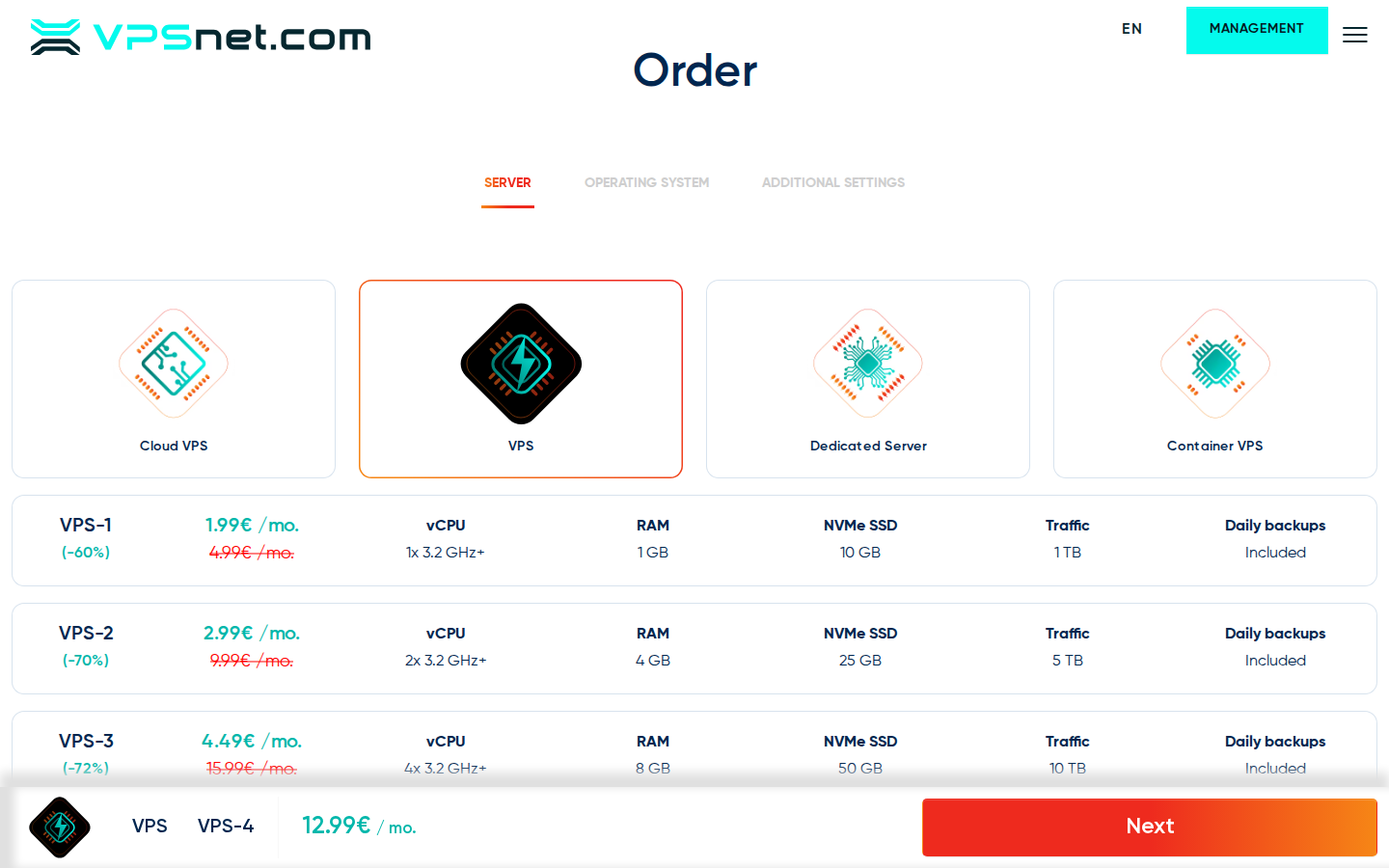
Choose a plan for listmonk
Open the listmonk product page and note minimum and recommended vCPU, RAM, and disk. Order a new Cloud VPS or VPS, or use a running server that still has free capacity.
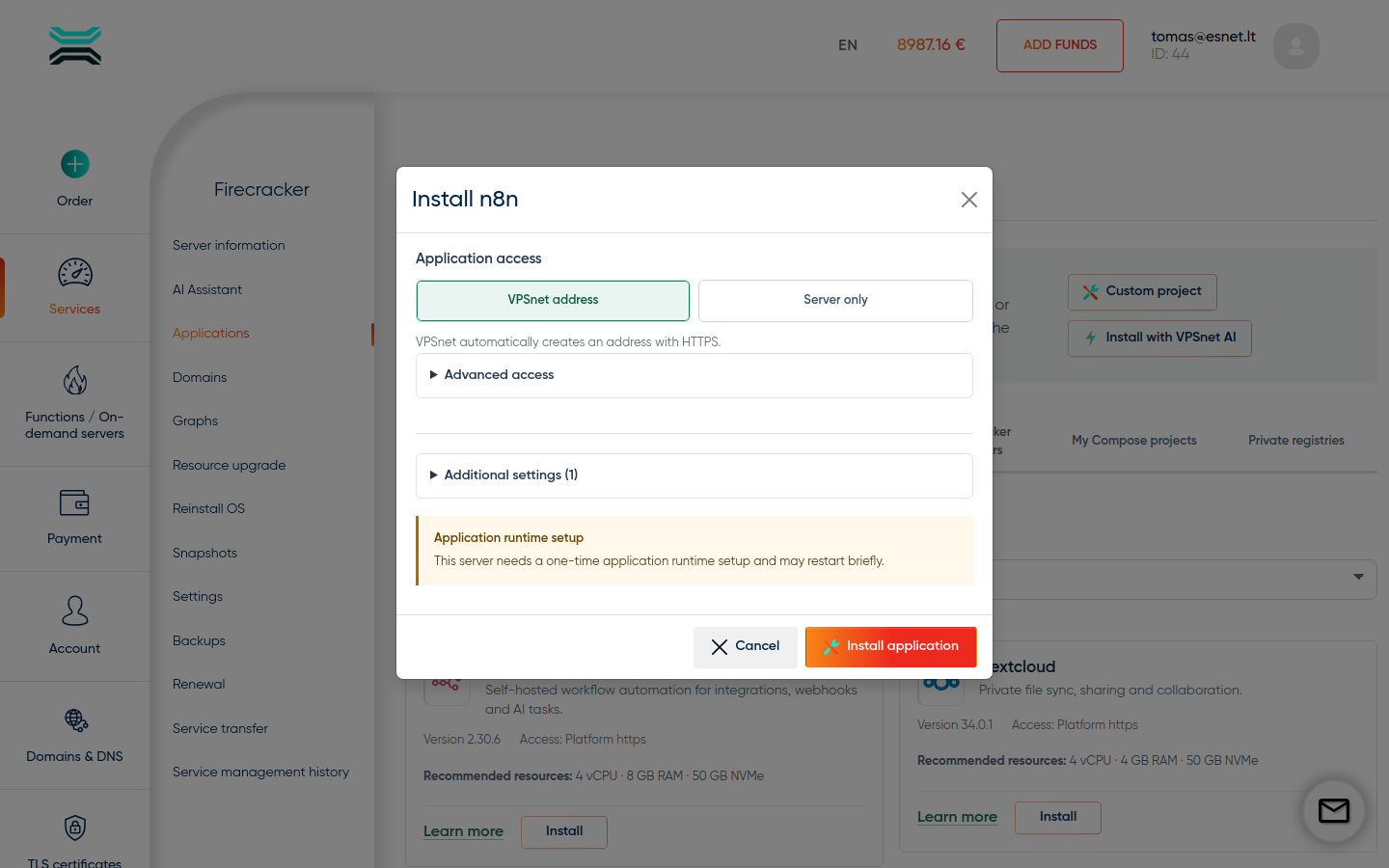
Install from Applications
In the service panel open Applications → listmonk → Install. Leave VPSnet address selected unless you need another mode under Advanced access. This recipe version exposes no Additional settings or Optional packs. Click Install — defaults are enough. Save any one-time credentials shown after install. If the panel shows an Application runtime setup notice, Install still proceeds — there is no extra checkbox.
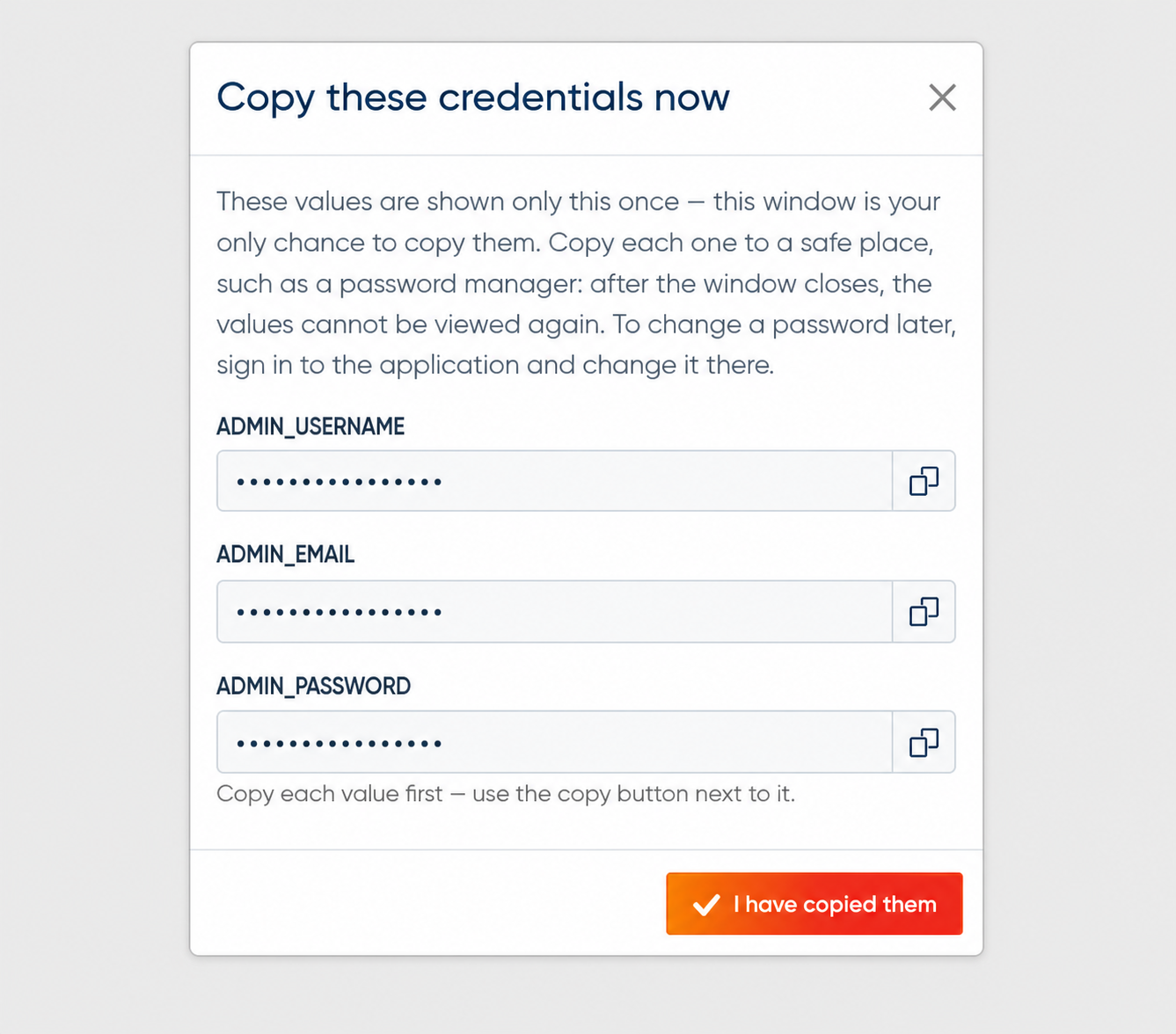
Save one-time credentials
When install finishes, the panel shows owner or admin credentials once. Copy them into your password manager immediately — they are never sent by email. If you closed the dialog too early, use the recovery path on that install in Applications.
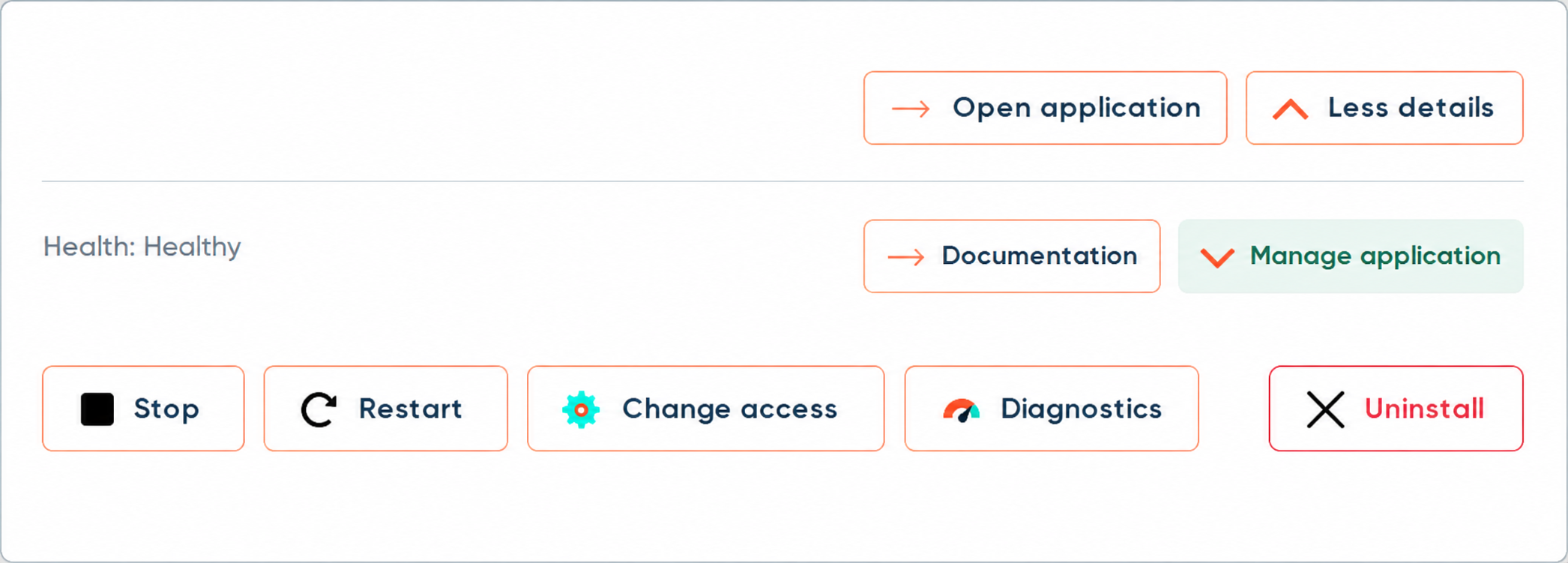
Open the managed HTTPS URL
When listmonk exposes a web UI, VPSnet assigns a *.vpsnet.cloud hostname. A short Certificate pending state is normal while DNS and SSL finish. When the status is active, use Open URL in Applications.
Finish your first task in listmonk
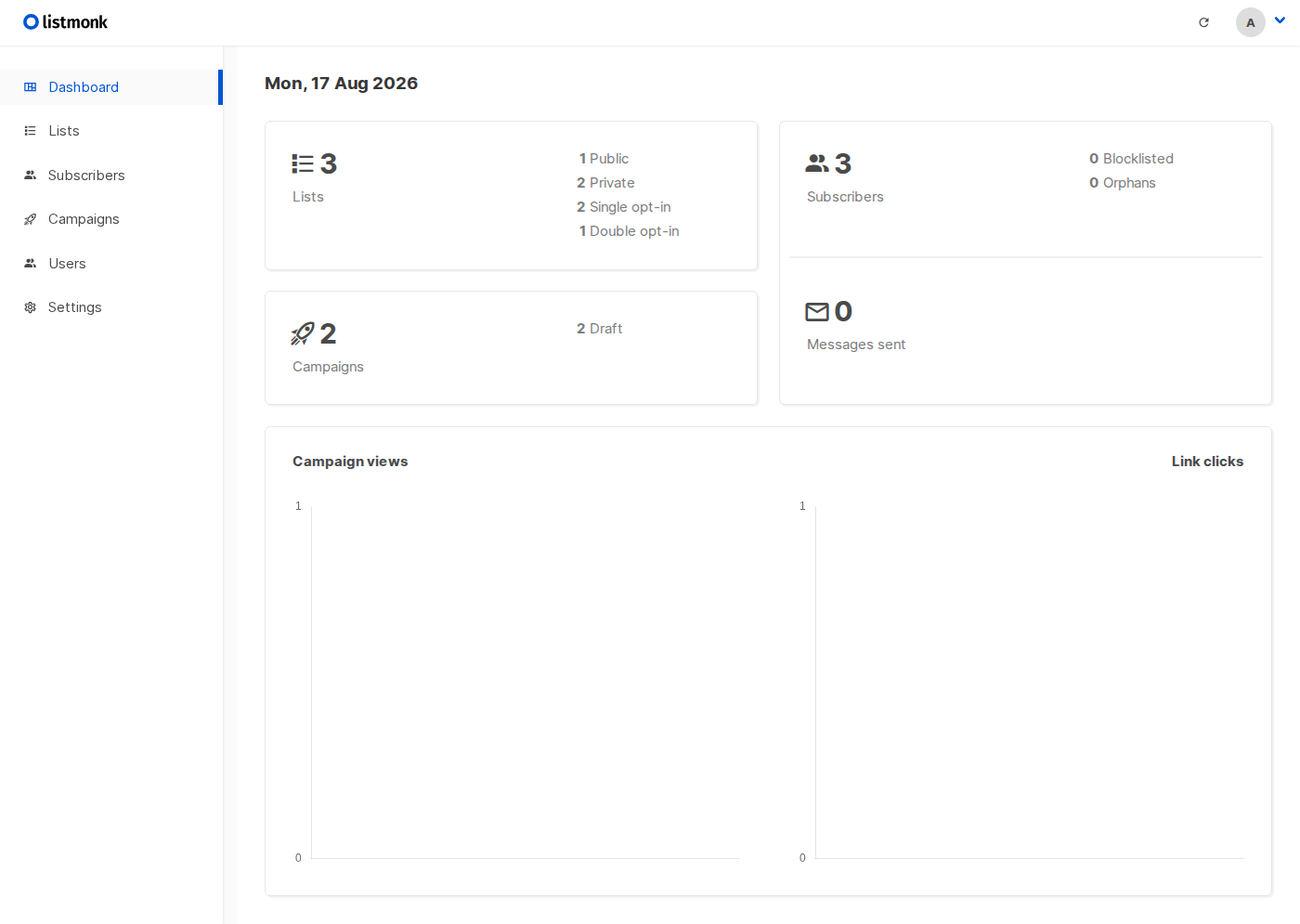
Sign in with the credentials you saved and complete one useful first task in listmonk (create a project, publish content, or run the primary workflow). This confirms that the application is ready to use.
Operate from the panel
Use Applications for restart, logs, health, update, and uninstall. Avoid editing the host Compose by hand — catalog installs are version-pinned managed recipes.
Options in the install dialog
The Applications → Install dialog is more than a single Install button. These controls appear when the recipe supports them. Safe defaults apply if you leave optional fields unchanged.
Application access
Choose how you reach the app at install time: VPSnet HTTPS (managed *.vpsnet.cloud), Private (this server only), Public IP (cleartext HTTP), Managed HTTPS on a DNS zone you own, or External HTTPS when you terminate SSL. You can change this later on the installation page.
Additional settings
This recipe version exposes no customer-editable Additional settings or Optional packs. Choose Application access and confirm a runtime restart if the panel asks.
Runtime restart
The first managed app on a server may need a short runtime restart. The dialog asks for confirmation. Later installs on the same server usually skip this.
First usage of listmonk
After Open URL, sign in with the secrets you claimed — or finish the in-app admin wizard if this recipe has no panel password. Complete one real job so the install is useful, not only healthy. Optional packs you enabled at install still need their own first-run inside the app.
Sign in or create the first admin
Use the username and password from the one-time Secrets dialog. If this recipe has no panel password, the app shows its own first-run wizard — invent a strong admin password there and store it in a password manager.
Finish any in-app setup wizard
Many apps ask for site name, timezone, language, or a first workspace on first open. Complete that wizard before you invite others. Optional packs (ADDON_/PACK_ flags) are pinned at install — they still need their own first-run screens inside the app.
Do one real job, then operate from the panel
Publish content, create a project, send a test, or run the primary workflow. That confirms the install is useful. Restart, logs, health, update, and uninstall stay in Applications — do not edit host Compose by hand.
All configuration variables
This recipe version exposes no customer-editable configuration fields. Generated secrets still appear once in the panel after install when the recipe creates them.
This recipe version exposes no customer-editable configuration fields. Generated secrets still appear once in the panel after install when the recipe creates them.
How you reach the app and claim secrets
Owner and admin credentials appear once in the VPSnet panel after install — they are never emailed. Most web UIs use managed HTTPS on *.vpsnet.cloud. Choose the access mode in the install dialog, then switch it later from the installation page (private, public HTTP, Managed HTTPS, or advanced External HTTPS when you terminate SSL yourself).
Sizing and tested targets
| Requirement | vCPU | RAM | NVMe |
|---|---|---|---|
| Minimum | 2 | 4 GB | 25 GB |
| Recommended | 4 | 8 GB | 50 GB |
| Server type | Operating system | Architecture |
|---|---|---|
| VPS | Almalinux 10 | x86_64 |
| VPS and Cloud VPS | Almalinux 9 | x86_64 |
| VPS | Centos stream 10 | x86_64 |
| VPS and Cloud VPS | Centos stream 9 | x86_64 |
| VPS | Rocky 10 | x86_64 |
| VPS and Cloud VPS | Rocky 9 | x86_64 |
| VPS and Cloud VPS | Ubuntu 24.04 | x86_64 |
| Cloud VPS | Almalinux 8 | x86_64 |
| Cloud VPS | Arch latest | x86_64 |
| Cloud VPS | Debian 11 | x86_64 |
| Cloud VPS | Fedora 39 | x86_64 |
| Cloud VPS | Fedora 40 | x86_64 |
| Cloud VPS | Opensuse 15.5 | x86_64 |
| Cloud VPS | Oracle 9 | x86_64 |
| Cloud VPS | Rocky 8 | x86_64 |
| Cloud VPS | Ubuntu 20.04 | x86_64 |
FAQ
01I closed the credentials dialog without saving the password.
Open that install in Applications and use the recovery path shown there, or contact support if recovery is not offered.
02Open URL still shows Certificate pending after several minutes.
Confirm the install health is green, then wait for DNS/SSL to finish. If access settings offer temporary public HTTP, you can use it only as a short workaround.
03I need environment variables that are not in the install form.
Only customer-editable blueprint fields are exposed at install and in the table below. Remaining env belongs to the managed recipe. Custom Compose is a separate advanced option when enabled on the service.