
How to install Actual Budget on VPSnet
Managed install of Actual Budget from the Applications panel — credentials in-panel, HTTPS included.
Prerequisites
Only what you need before the install steps below — nothing repeated from the guide.
A VPSnet account with access to the control panel.
A VPS or Cloud VPS that meets the Actual Budget resource guidance on the product page.
Install Actual Budget from the panel
Follow the Applications panel path end to end. Each step covers one action only.
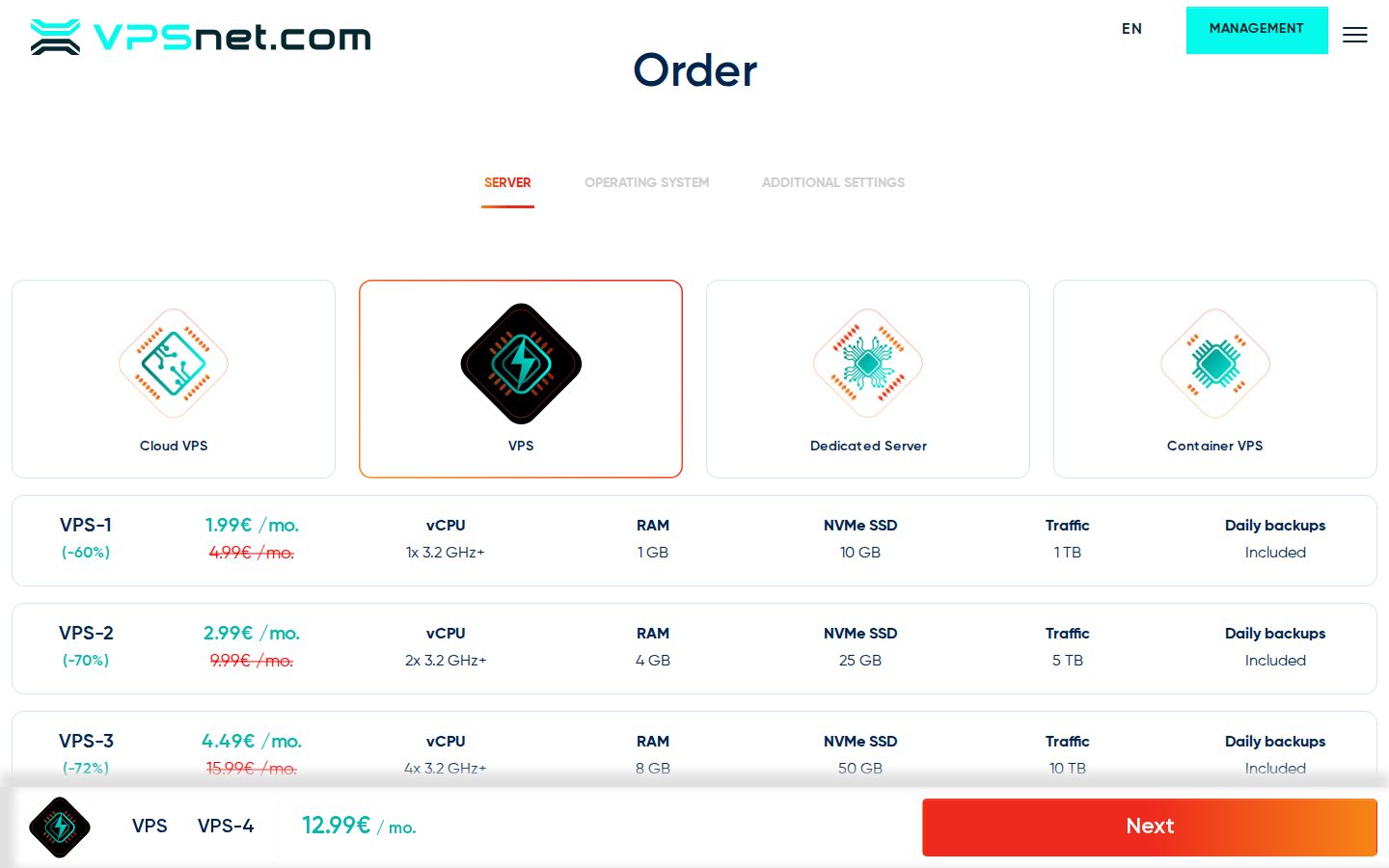
Choose a plan for Actual Budget
Open the Actual Budget product page and note minimum and recommended vCPU, RAM, and disk. Order a new Cloud VPS or VPS, or use a running server that still has free capacity.
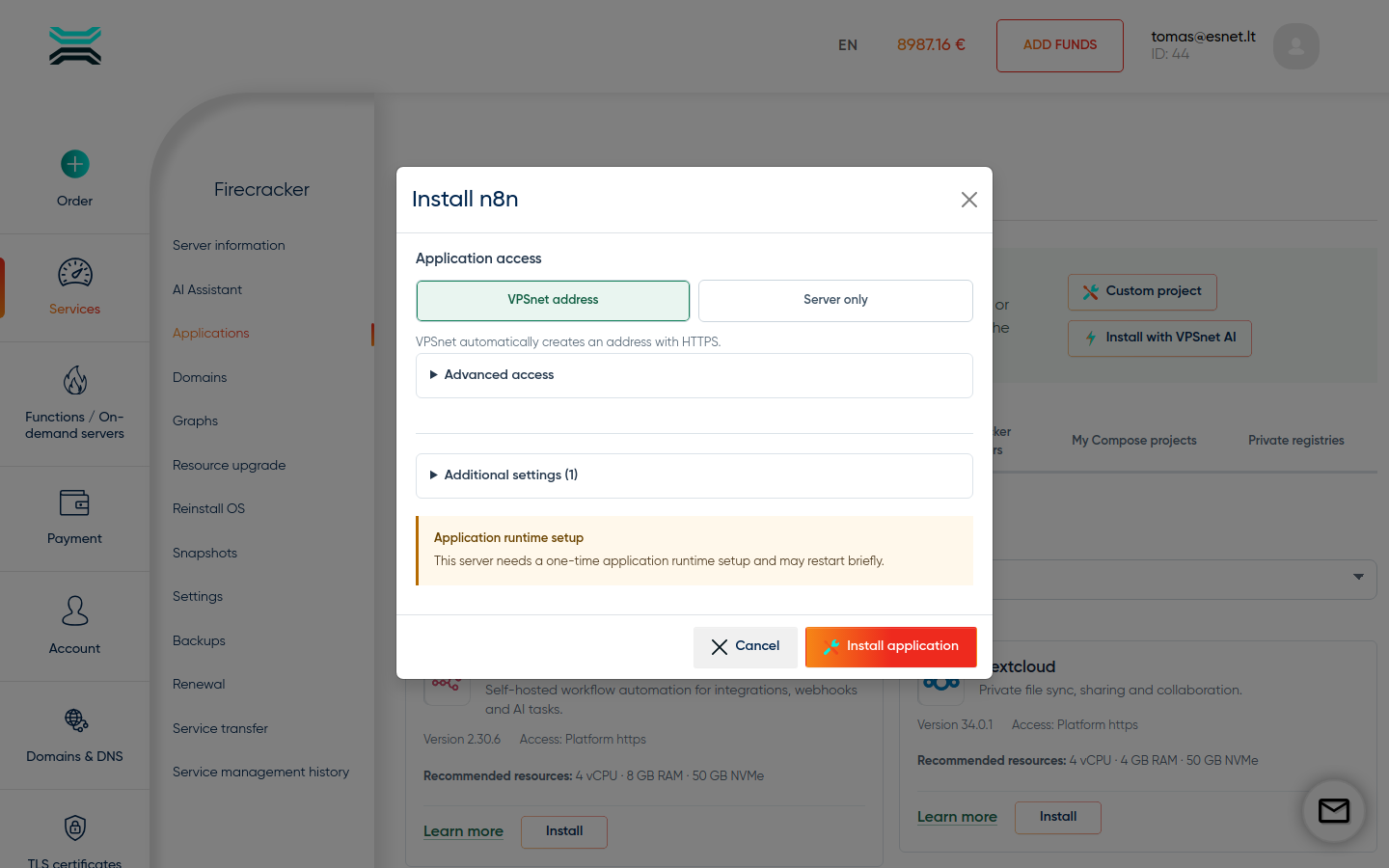
Install from Applications
In the service panel open Applications → Actual Budget → Install. Leave VPSnet address selected unless you need another mode under Advanced access. This recipe version exposes no Additional settings or Optional packs. Installing an application does not restart the server. Click Install application — the defaults are enough. Save any one-time credentials shown after install.
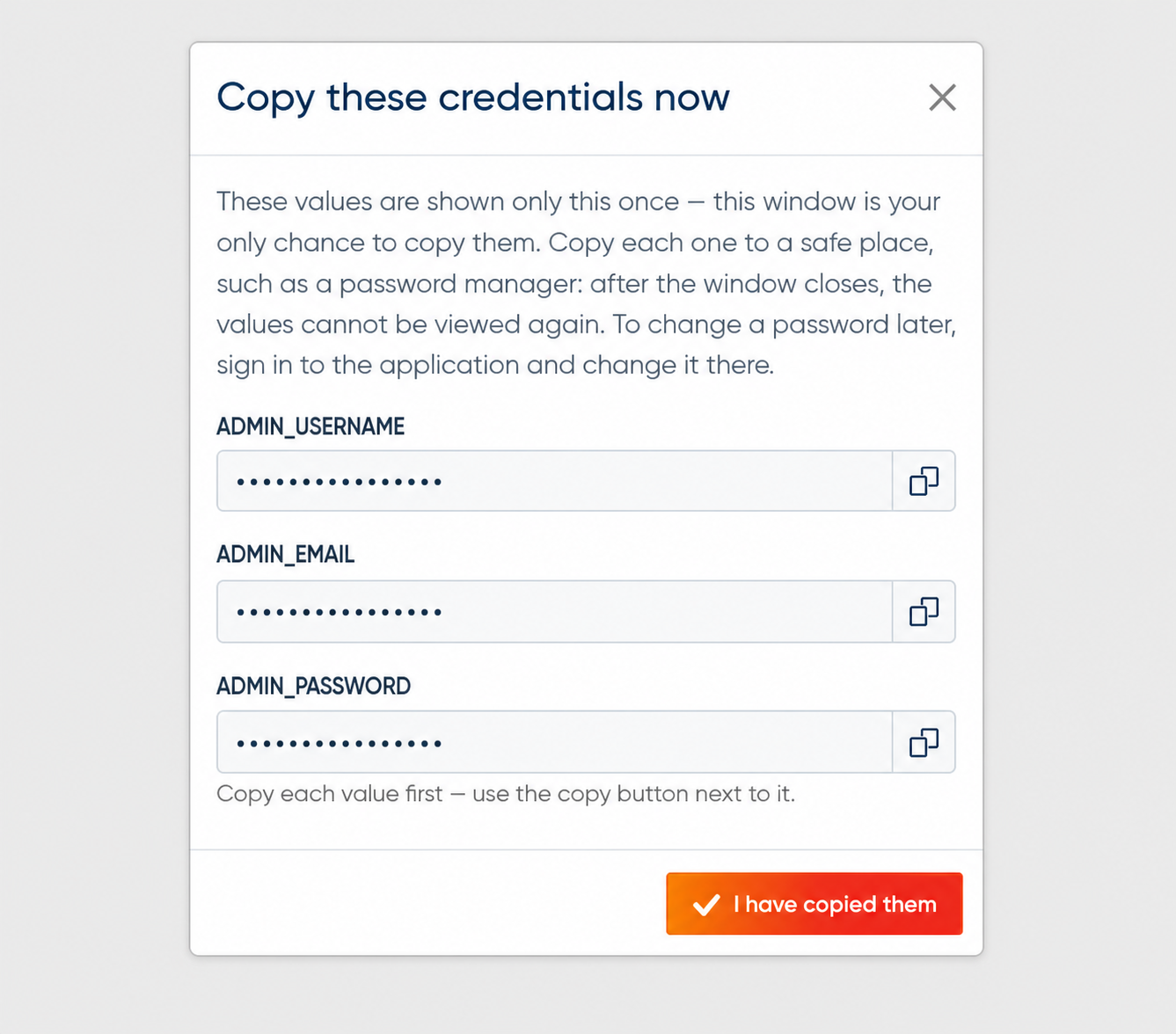
Save one-time credentials
When install finishes, the panel shows owner or admin credentials once. Copy them into your password manager immediately — they are never sent by email. If you closed the dialog too early, use the recovery path on that install in Applications.
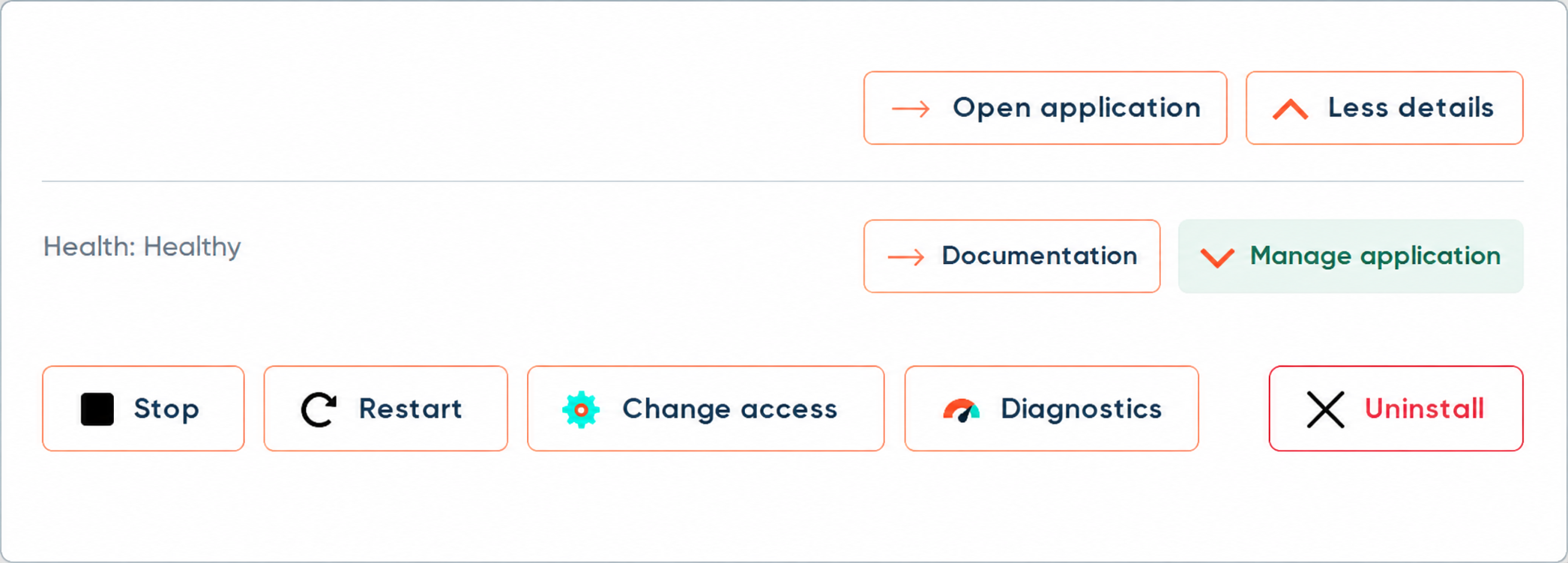
Open the managed HTTPS URL
When Actual Budget exposes a web UI, VPSnet assigns it a *.vpsnet.cloud hostname. While DNS and SSL are prepared, the Open application button is disabled and shows “The HTTPS certificate is still being issued.” — this is normal. When the button becomes active, click it.
Finish your first task in Actual Budget
Sign in with the credentials you saved and complete one useful first task in Actual Budget (create a project, publish content, or run the primary workflow). This confirms that the application is ready to use.
Step 05Actual Budget after the first successful sign-inActual BudgetScreenshot coming from a live install — layout reserved so the guide stays visual.Operate from the panel
Use Applications for restart, logs, health, update, and uninstall. Avoid editing the host Compose by hand — catalog installs are version-pinned managed recipes.
Options in the install dialog
The Applications → Install dialog is more than a single Install application button. These controls appear when the recipe supports them. Safe defaults apply if you leave optional fields unchanged.
Application access
Choose how you reach the app at install time: VPSnet address (managed *.vpsnet.cloud address with HTTPS), Server only, Public HTTP (unencrypted HTTP on the server IP), My domain (in a DNS zone you own), or My HTTPS address when you handle HTTPS yourself. You can change this later on the installation page.
Additional settings
This recipe version exposes no customer-editable Additional settings or Optional packs. Choose Application access.
First usage of Actual Budget
After Open application, sign in with the secrets you claimed — or finish the in-app admin wizard if this recipe has no panel password. Complete one real job so the install is useful, not only healthy. Optional packs you enabled at install still need their own first-run inside the app.
Sign in or create the first admin
Use the username and password from the one-time Secrets dialog. If this recipe has no panel password, the app shows its own first-run wizard — invent a strong admin password there and store it in a password manager.
Finish any in-app setup wizard
Many apps ask for site name, timezone, language, or a first workspace on first open. Complete that wizard before you invite others. Optional packs (ADDON_/PACK_ flags) are pinned at install — they still need their own first-run screens inside the app.
Do one real job, then operate from the panel
Publish content, create a project, send a test, or run the primary workflow. That confirms the install is useful. Restart, logs, health, update, and uninstall stay in Applications — do not edit host Compose by hand.
All configuration variables
This recipe version exposes no customer-editable configuration fields. Generated secrets still appear once in the panel after install when the recipe creates them.
This recipe version exposes no customer-editable configuration fields. Generated secrets still appear once in the panel after install when the recipe creates them.
How you reach the app and claim secrets
Owner and admin credentials appear once in the VPSnet panel after install — they are never emailed. Most web UIs use VPSnet address with HTTPS on *.vpsnet.cloud. Choose the access mode in the install dialog and change it later on the installation page: VPSnet address, Server only, Public HTTP, My domain, or My HTTPS address when you handle HTTPS yourself.
Sizing and tested targets
| vCPU | RAM | NVMe | |
|---|---|---|---|
| Recommended | 2 | 2 GB | 20 GB |
| Server type | Operating system | Architecture |
|---|---|---|
| VPS | Almalinux 10 | x86_64 |
| VPS and Cloud VPS | Almalinux 9 | x86_64 |
| VPS | Centos stream 10 | x86_64 |
| VPS and Cloud VPS | Centos stream 9 | x86_64 |
| VPS and Cloud VPS | Debian 12 | x86_64 |
| VPS and Cloud VPS | Debian 13 | x86_64 |
| VPS | Rocky 10 | x86_64 |
| VPS and Cloud VPS | Rocky 9 | x86_64 |
| VPS and Cloud VPS | Ubuntu 22.04 | x86_64 |
| VPS and Cloud VPS | Ubuntu 24.04 | x86_64 |
| VPS and Cloud VPS | Ubuntu 26.04 | x86_64 |
| Cloud VPS | Almalinux 8 | x86_64 |
| Cloud VPS | Arch latest | x86_64 |
| Cloud VPS | Oracle 9 | x86_64 |
| Cloud VPS | Rocky 8 | x86_64 |
FAQ
01I closed the credentials dialog without saving the password.
Open that install in Applications and use the recovery path shown there, or contact support if recovery is not offered.
02The Open application button still shows “The HTTPS certificate is still being issued.”
Confirm the install health is green, then wait for DNS/SSL to finish. If access settings offer temporary public HTTP, you can use it only as a short workaround.
03I need environment variables that are not in the install form.
Only customer-editable blueprint fields are exposed at install and in the table below. Remaining env belongs to the managed recipe. Custom Compose is a separate advanced option when enabled on the service.